

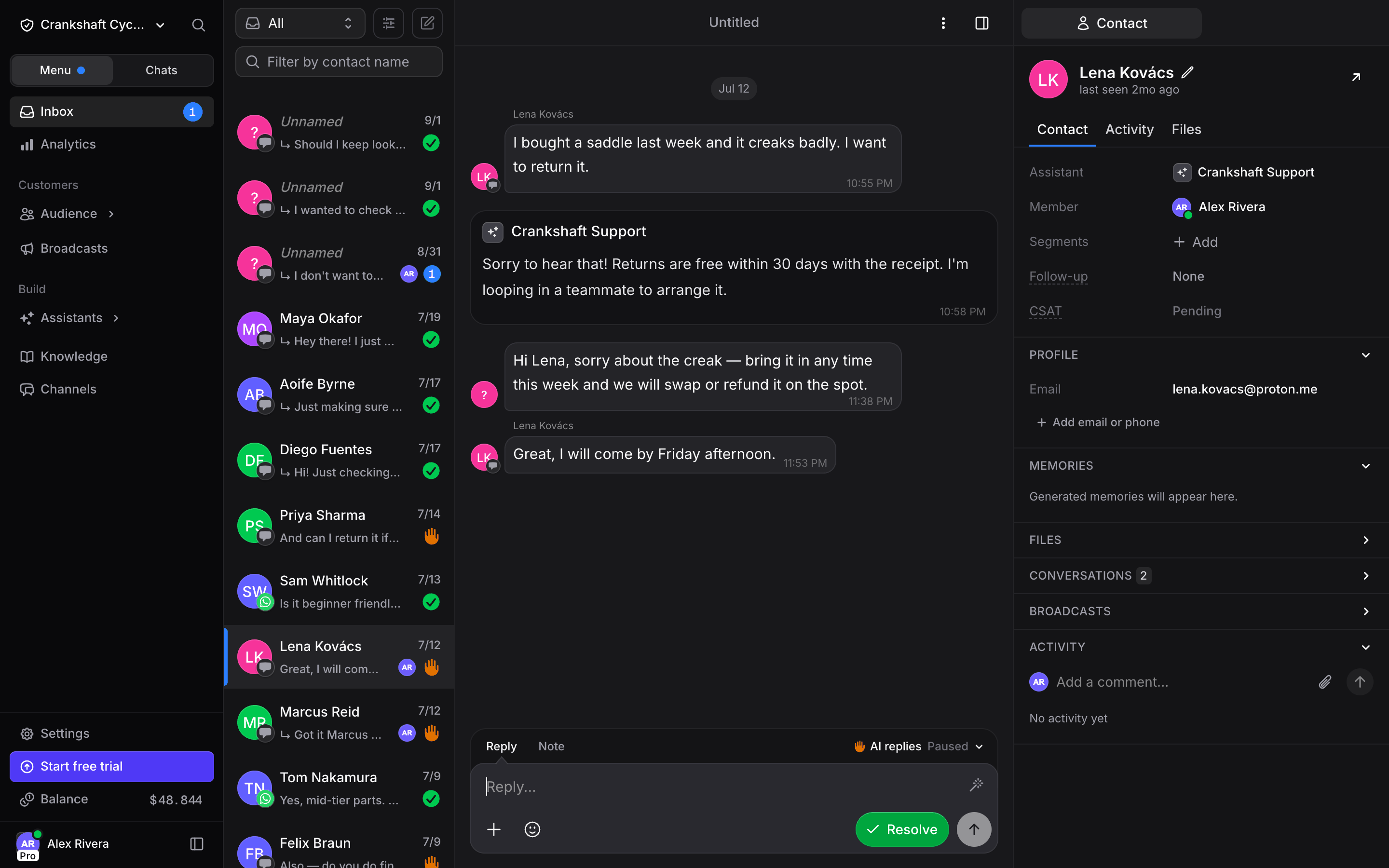
Layout
The Inbox is a three-panel layout:- Conversation list (left): every conversation, with filters, search, and status indicators.
- Message thread (center): the full chat history plus a reply composer at the bottom.
- Contact panel (right): everything Invent knows about the customer, across three tabs, Contact, Files, and Activity.
Conversation List
The left panel lists every conversation across every channel and every assistant in your workspace. Each entry shows:- Avatar and contact name. Contacts without a name shared yet appear as Unnamed.
- Last message preview. A one-line snippet of the most recent message.
- Timestamp. Relative time since the last message (
6h,21h,1d,2d). - Channel indicator. A small channel logo badge on the contact avatar (the green WhatsApp glyph, the Web Widget speech bubble, and so on) so you know at a glance which channel the message came from.
- Status indicator. A green check means Resolved. Other states (unread, waiting for human, follow-up scheduled) have their own icons.
- Segment chip. The contact’s first segment, with a +N badge when they belong to more (hover it to see the rest).
- Assigned member. The avatar of the teammate the conversation is assigned to, if any.
- CSAT badge. When Auto CSAT is enabled, the star rating (1–5) appears on resolved entries.
- Follow-up countdown. If Auto Follow-ups has scheduled a re-engagement, the entry shows the time-until-next-follow-up and a Cancel button.
Filters
The filter dropdown at the top of the list narrows the view:- All: every conversation.
- Unread: conversations with new messages you have not opened yet.
- Waiting: open conversations nobody is replying to. They are not assigned to anyone, and the AI is not answering (paused on the conversation, or off for the contact).
- Unresolved: open conversations (either the AI is handling them or they are waiting for a reply).
- Resolved: closed conversations.
- Assigned to me: conversations where you are the assigned agent.
- Unassigned: conversations with no agent assigned.
Starting a Conversation
You don’t have to wait for a customer to write first. You can message anyone in your Audience, or a new phone number, on a channel that lets a business write first:- WhatsApp: the first message is an approved template. Once the contact replies, you can write freely for 24 hours.
- SMS (Twilio and Telnyx): write anything right away.
Where to Start
- Plus button: the + button next to the filters, at the top of the conversation list. It opens New conversation with your recent contacts. Search by name, or type a phone number to message someone new.
- Inbox search: type a name, phone number or email into the search field. Matching contacts with no conversation in the list show under Contacts. A full phone number that is not in your contacts shows under Not in your contacts. Click the row and pick the line to send from.
- The contact: click Message on a contact’s card or page in Audience, or open the menu next to one of their phone numbers or emails and pick Message.
Pick Where to Send From
Send from lists every connected line that can reach the contact: the channel, the number or account, and the assistant that answers on it. The line you used last comes first. Pick one and the conversation opens, ready for your first message. Nothing is sent until you send it. On WhatsApp, the new conversation says Send a template to start the conversation. Click Reply with template, pick an approved template, and send it.- More than one number: when the contact has several phone numbers, pick one in To above the lines.
- Past conversations: the contact’s conversations show under Conversations, so you can pick one up instead of starting over.
- Starting again: if the contact already has an open conversation on that line, it opens instead of a new one. The same goes for a conversation you opened and closed without writing. For a resolved conversation, the assistant’s Thread Mode decides: Continue conversation reopens it, New conversation starts a fresh one.
New Contacts
Type the full phone number. It shows under Not in your contacts. Pick a line, and the number is saved as a contact in your Audience when the conversation starts. To save a name too, pick New contact at the top of New conversation. It also shows when you type a name that matches nobody, with that name filled in. Fill in the phone number, and the email if you have it, then click Save and message.When You Can’t Start
- Blocked contact: the lines are replaced by a note that the contact is blocked. Members who can manage contacts can Unblock them right there.
- A line needs reconnecting: its row says Needs reconnecting. Members who can manage connections click it to open Channels and reconnect it.
- No line can reach them: with no WhatsApp or SMS line connected, you see Connect WhatsApp or SMS to message contacts, with a Connect a channel button for members who can connect channels.
- Write-first channels: when the contact is on Instagram, Messenger, Telegram or TikTok, a note under the lines says they need to write to you first there.
- Too many starts: each member can start up to 60 conversations an hour. Past that, you see Too many attempts, try again later.
Message Thread
Click any conversation to open the full thread in the center panel. Inside the thread you will see:- Conversation title: an AI-generated summary at the top, like “Open Claw Connection”.
- Customer and assistant messages, with date dividers between days.
- Knowledge indicators under AI replies, such as “Found 3 results in knowledge base” or “Thought for 2 seconds”.
- System events in grey italic for everything the AI and your agents do: AI resolved the conversation, AI scored customer satisfaction, AI-generated memories from conversation, An agent reopened the conversation, and more.
- Follow-up banners with the scheduled time and AI reasoning when Auto Follow-ups is active.
- CSAT scores inside the Conversation resolved card when Auto CSAT is enabled.
- Reactions on customer messages. Hover a message and pick an emoji, on WhatsApp, Messenger, Instagram, Telegram, Slack, Microsoft Teams and the Web Widget. On WhatsApp, Messenger, Instagram and Telegram the customer sees one reaction per message from your side, so a new reaction from you or the AI replaces the previous one. The assistant can react with an emoji instead of replying, for a quick thanks or a wrap-up.
- Seen by avatars under the last message each teammate has read.
- Retry on a message that failed to send. The error shows under the message with a Retry button, on every channel except the Web Widget.
- …and more as new capabilities ship.
Three-Dot Conversation Actions
Click the three-dot menu at the top of any conversation for additional actions:- Mark As Unread: bring the conversation back to the top of your unread list.
- Mute: silence the conversation for a preset duration (15 minutes, 1 hour, 3 hours, 24 hours, until tomorrow, 3 days, 1 week, 1 month, or 1 year). Resume it manually at any time.
- Unsubscribe Contact: stop this contact from receiving broadcast messages, without removing them from your audience.
- Transcript: download or copy the full conversation as Markdown.
- Block Contact: reject further incoming messages from this contact across every channel.
- Delete Chat: permanently remove the conversation. The contact stays in your Audience.
- Inbox Settings: display options for this browser. Relative dates shows recent message times as
2m,3hor4dinstead of an exact time. Members who can manage assistants also get Show usage (not on white-label workspaces), which shows the model, token usage and estimated cost on supported messages.
Replying and Handoff
The reply composer lives at the bottom of every conversation, whether the AI is handling it or you have already taken over. It has a Reply tab, a Note tab, a Template tab on WhatsApp, and an AI replies control that tells you who is answering. On a resolved conversation the Resolve button turns into Reopen, and sending a reply reopens the conversation on its own. On WhatsApp, Messenger and Instagram you can only write freely within 24 hours of the customer’s last message (48 hours on TikTok). Once that window lapses, the Reply tab shows an Outside 24h window pill (or 48h) instead of the input. On WhatsApp, a Reply with template button next to it opens the Template tab, where you send an approved template straight from the composer, no broadcast needed. On the other channels you wait for the customer to write again. While a customer who wrote to you from a WhatsApp ad is inside the free entry-point window, a green Templates free badge sits next to the pill.The Composer
The tabs at the top of the composer switch what you are writing:- Reply: a message to the customer. The + menu adds photos and files and holds your canned replies, the wand gives you AI writing help, and the send arrow delivers the message. Resolve (green) closes the conversation.
- Template: only on WhatsApp conversations with a connected number. It lists your WhatsApp templates with a search field, each one’s approval status and a body preview, plus a link to manage them. Only approved templates can be picked. Picking one opens the Reply with template dialog with a preview: fill in what the template needs and hit Send template.
- Note: a private note for your team. It shows in the thread as a Private note, is never sent to the customer, does not pause the AI, and is also logged as a comment on the contact’s Activity timeline. The wand offers Draft a note, Polish and Shorter here.
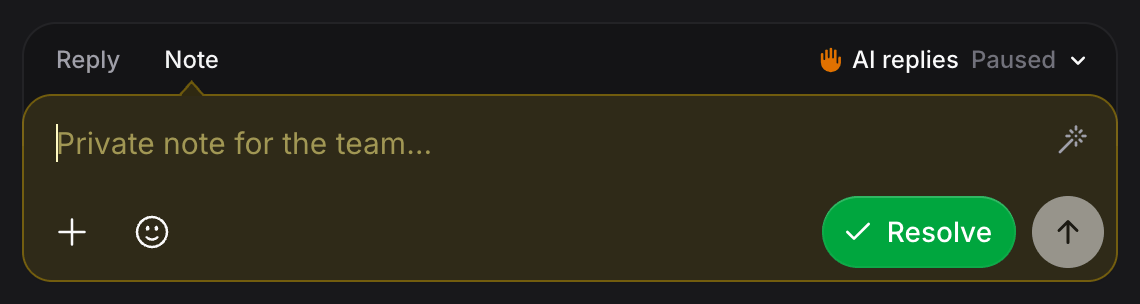
AI replies: On, Paused, Off
The AI replies control on the right of the composer tabs reads On, Paused or Off. Click it to switch:- On: AI responds to every message in this conversation.
- Paused: AI does not respond while your team handles this conversation. This is the state you land in when you send a reply. A paused AI resumes on its own when the customer writes again after 10 quiet minutes, so a conversation you stepped into does not stay silent for good. Pick On to hand it back sooner.
- Off: AI does not respond to this contact until you turn it back on. It asks you to confirm, and it applies to every conversation with that contact, not just this one. It is the same switch as Disable AI for this contact on the contact card. The AI never resumes on its own while Off. Pick On or Paused to enable it again.
Writing Assistant
The wand button on the composer gives you AI writing help on the current draft. Open the menu (the chevron next to the wand) for the full set:- Draft a reply: writes the next reply for you from the recent conversation, matching the customer’s language and following your assistant’s instructions. Use it on an empty composer to get a first draft.
- Polish: fixes grammar, spelling, and punctuation while keeping your wording.
- More formal / Friendlier: shifts the tone without changing the meaning.
- Shorter: tightens a long draft down to the essentials.
What it costs. Each AI writing action (Draft, Polish, More formal, Friendlier, Shorter) uses a small amount of AI credits, the same usage-based way as the rest of the assistant. The exact amount varies with the length of the text and the model, but a single rewrite is minimal. See Plans & Pricing for how usage is billed.
Canned Replies
Save the messages you send over and over (shipping times, return policy, opening hours) and drop them into the composer in one tap from the + menu.- Free to use. Inserting a canned reply pastes your saved text into the composer, so it costs nothing. Only the AI writing actions above use credits.
- Can carry attachments. A canned reply isn’t limited to text: it can include up to 5 file attachments (from files already uploaded to your org). Inserting it drops both the text and its attachments into the composer.
- Private to you. Canned replies are personal to your account. They are not shared with the rest of your team.
- Editable after inserting. Once a canned reply is in the composer you can tweak it, or run it through Polish or Shorter like any other draft.
Automatic Agent Assignment
When Transfer to Member is enabled on the assistant, Invent automatically routes conversations the AI cannot handle, or that the customer explicitly asks a human for, to your team:- The AI flags the conversation as Waiting for Human and records the reason in the thread.
- Invent assigns the conversation to an available agent on the assistant, if one is available.
- If no agent is available, the conversation stays Unassigned and any permitted team member can claim it from the Inbox: reply to it, or pick yourself in the Member dropdown of the contact panel.
Resolving and Reopening
Click Resolve on any open conversation to mark it complete. The button turns into Reopen. If a customer messages again after you resolve, the conversation reopens automatically and goes back to the AI (or to the assigned member). You can also click Reopen, or just send a reply, to resume a resolved conversation from your side.Contact Panel
The right-hand panel summarises everything Invent knows about the customer for the selected conversation. It has three tabs: Contact, Files, and Activity.Contact Tab
The default view. All key information is grouped into collapsible sections.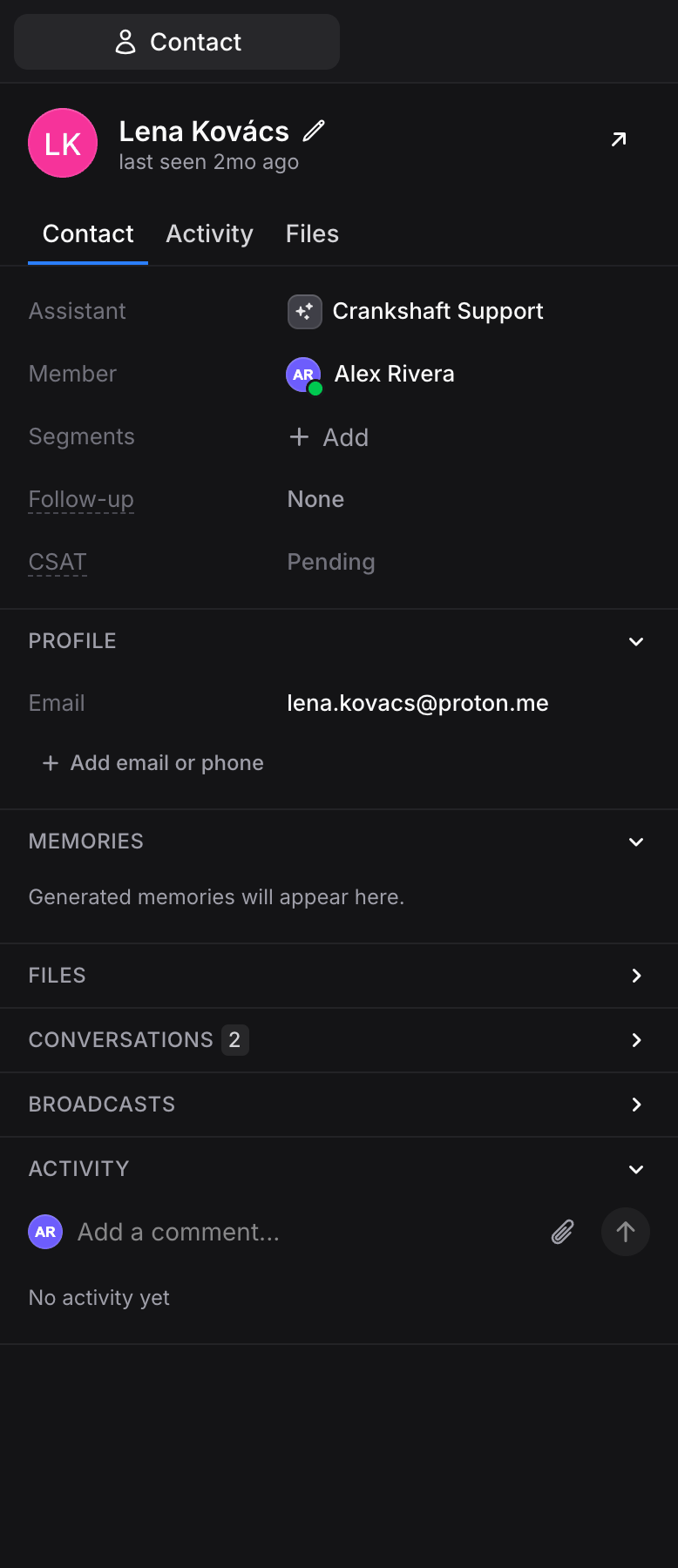
Info
Top-level details about the current conversation:- Channel: the channel icon and the identity the conversation runs through (the WhatsApp number, the handle, or the connection name). Hover it to see which assistant handles it; members who can manage assistants can click through to that assistant’s Channels page. When the conversation has no channel identity, the row reads Assistant and shows the assistant instead.
- Member: the assigned teammate. Use the dropdown to assign or reassign anyone on the team, or pick yourself to claim the conversation.
- Segments: add or remove segments for this contact.
- CSAT: the satisfaction score for this conversation (1–5 stars). Shows the auto-generated score if Auto CSAT is enabled, or lets you score manually.
- Follow-up: schedule a follow-up with preset intervals (1h, 3h, 12h, 24h) or a custom date. When Auto Follow-ups is enabled, the countdown and a Cancel button appear here.
- Window closes: on WhatsApp, Messenger and Instagram (24h) and TikTok (48h), a countdown to the end of the messaging window, or Closed once it has lapsed. Hover the label to see whether a template can reopen it or you have to wait for the contact to write again.
- Ad window: WhatsApp only, while a contact who wrote to you from a WhatsApp ad is inside the free entry-point window. It counts down to when templates to this contact stop being free. It does not extend the messaging window above.
Referral
Shows where this conversation originated from, if the source is known.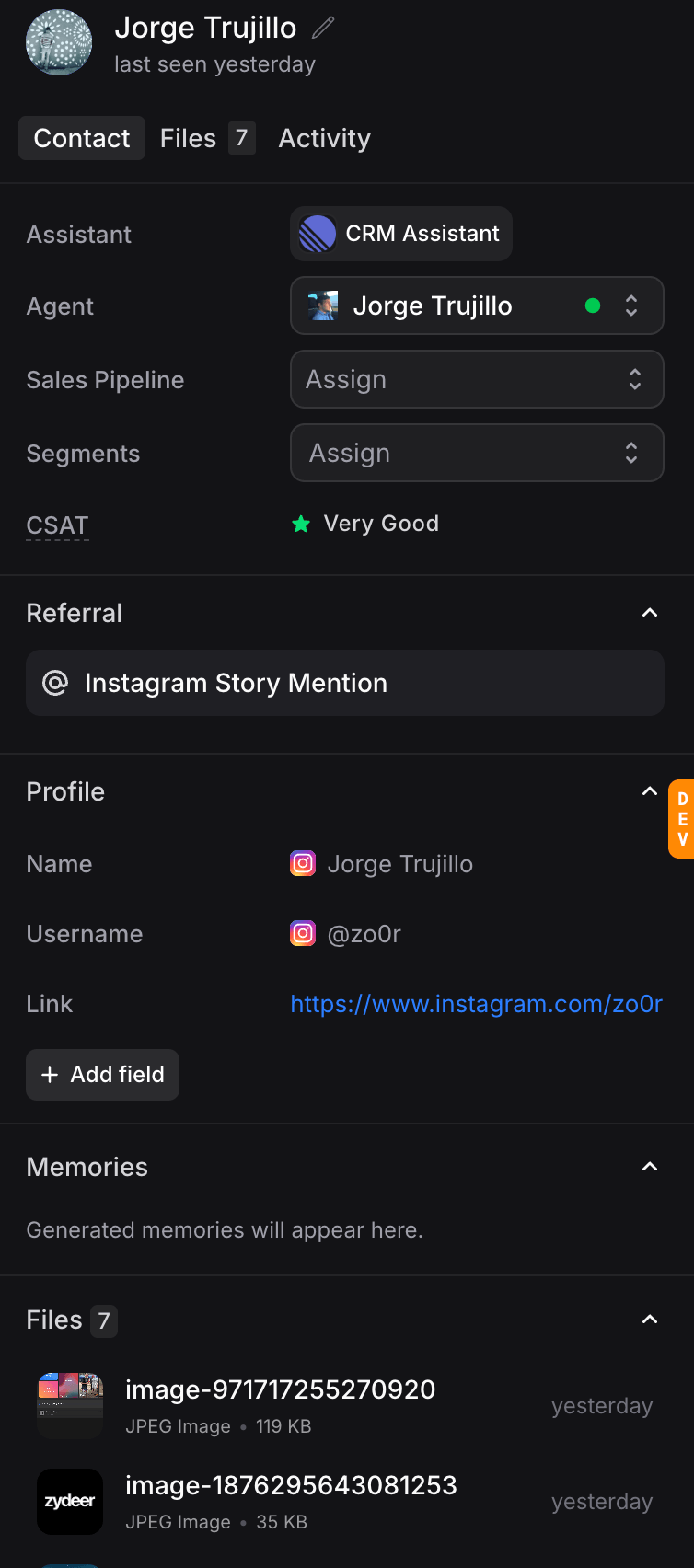
Profile
Contact details and device info:- Name, Email, Phone: core contact fields, editable inline.
- Country and Language: detected from the channel or device.
- Device: browser and device for web widget contacts.
- Link: a one-click link to message the contact on their native channel (for example, a
wa.melink for WhatsApp). - + Add email or phone: attach an email address or phone number to the contact.
Memories
Everything the assistant remembers about this customer, organised by type (Facts, Preferences, Goals, Experiences). Memories persist across every channel and every conversation, so the assistant can pick up where it left off weeks or months later. You can delete individual memories from here if a customer asks.Files
A preview of the five most recently shared files, with a See All link that switches to the Files tab. You can also upload files from the section header, which then appear inside the conversation.Conversations
The last ten conversations with this contact across every assistant. Each entry shows resolution status and date, and clicking it jumps you straight there.Broadcasts
A list of broadcasts this contact has received, with delivery status (e.g., Opened) and the broadcast name.Activity Preview
A compact view of recent activity on this contact with a Write a note… input for quick internal notes. Click Load More or switch to the Activity tab for the full timeline.Files Tab
The full list of files shared in conversations with this contact. You can:- Browse and search every uploaded file.
- Upload new files with the Upload files button (they are attached to the conversation and to the contact).
- Paginate with Load more.
Activity Tab
A complete timeline for this contact: conversation events, segment changes, agent actions, and internal notes. Add notes from the top of the timeline to leave context for teammates.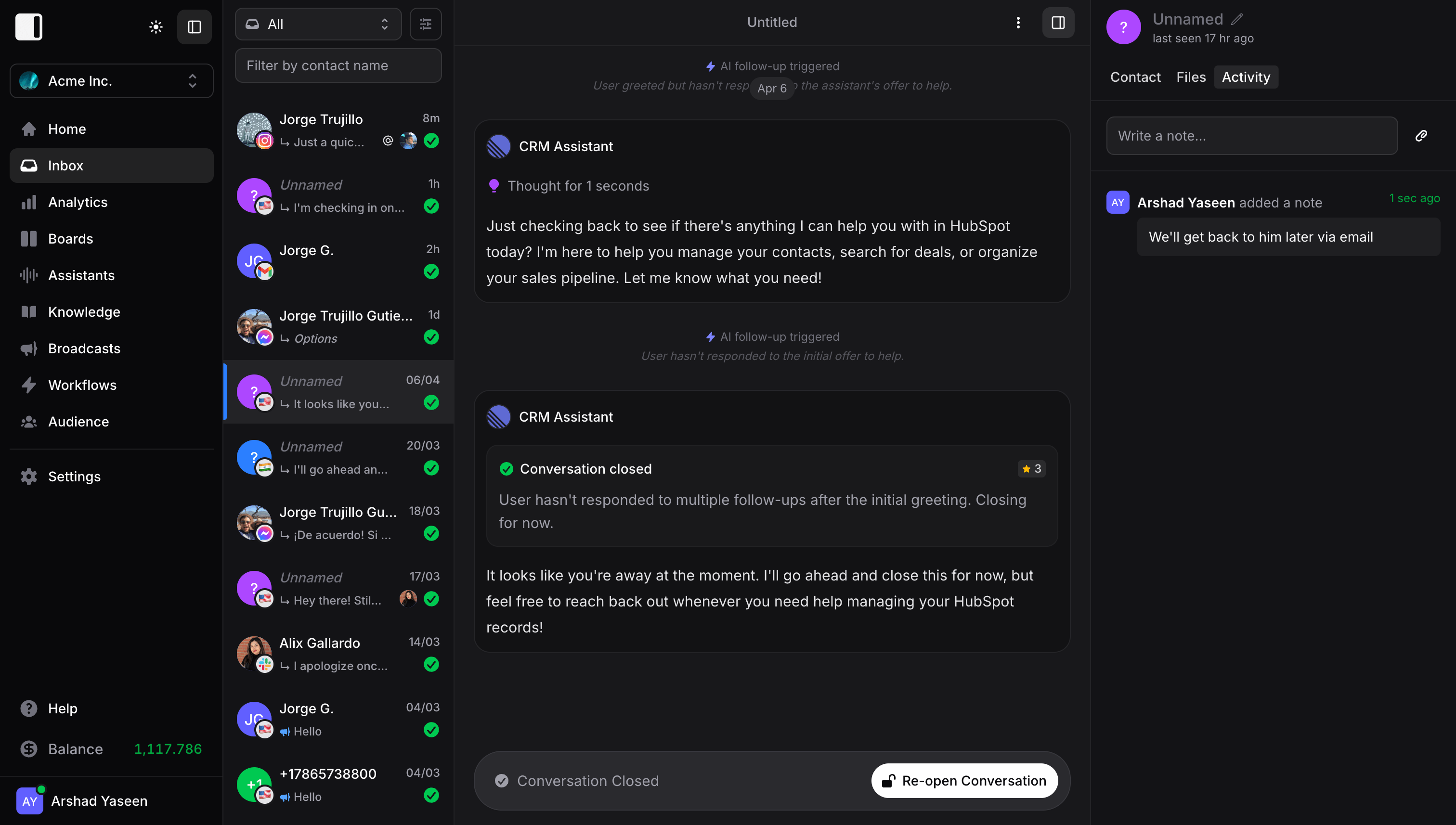
Common Flows
1. The AI handled it, you just confirm
- Open the conversation to watch or review.
- If the AI already closed it, you see the Conversation resolved card with an auto-generated summary and (if enabled) a CSAT score.
- No action needed.
2. The customer asks for a human
- The AI flags the conversation as Waiting for Human (if Transfer to Member is enabled) and Invent auto-assigns it to an available member on this assistant, or leaves it Unassigned if nobody is available.
- The assigned member (or anyone with access) opens the conversation and replies from the composer. Typing and sending a reply is enough, Invent pauses the AI automatically.
- When the issue is resolved, set AI replies back to On to keep the conversation open with the assistant, or Resolve to close it.
3. You want to jump in proactively
- Open any live conversation.
- Type your reply and send, the AI pauses automatically for this conversation. (Or set AI replies to Paused first if you want to pause the AI without sending a message yet.)
- Continue replying manually as many times as you need.
- Set AI replies back to On to return the conversation to the assistant, or Resolve to close it. If you do neither, the AI wakes up on its own the next time the customer writes after 10 quiet minutes.
4. A resolved conversation comes back
- The customer messages again and the conversation reopens automatically.
- The AI (or the assigned member) picks it back up where it left off, with full Memory intact.
Best Practices
- Let the AI work first. Most conversations resolve on their own. Jumping in too early short-circuits the assistant and adds manual load.
- Filter ruthlessly. Waiting and Unresolved are the only two lists you really need to watch during the day.
- Leave notes. The Note tab in the composer and the Activity tab keep context with the contact forever, across every future conversation.
- Trust Resolve. A resolved conversation automatically re-opens if the customer replies, so you do not need to leave things open “just in case”.
- Just type when you need to jump in. There is nothing to click first. Send a message and the AI pauses on that conversation automatically.
- Hand it back. After you step in, set AI replies back to On so the next message benefits from Knowledge and Memory again. If you forget, the AI wakes up on its own once the customer writes again after 10 quiet minutes. Keep Off for contacts you never want the AI to answer.
Next Steps
AI Routing
Set up routing members, assignment, and access scopes for each assistant
Auto Follow-ups
Automatically re-engage idle conversations instead of letting them close silently
Memory
See how the assistant remembers customers across every channel and conversation
Tracking
Know where each conversation originated, from ads to UTMs