

When to use an agent
- Recurring work: a daily briefing, a weekly report, chasing unpaid invoices.
- Work started by another app: a new order or a form reply comes in and the agent handles it.
- Questions from your team: mention the agent in a comment and it answers in the same thread.
Create an agent
1
Open Agents
In the sidebar, click Agents, then Create agent.
2
Name it and pick a template
Give it a Name and pick a Template, the job to start from. You can change everything later. Prefer a guided setup? Click Set up step by step.
3
Write the instructions
On the agent’s Settings tab, fill in Instructions. Tell your agent what its job is and how to do it, as you would tell a teammate. Every run follows these instructions.
4
Test it
Click Test Agent to try it in a draft conversation. Test runs are not saved to the Runs list.
5
Decide when it runs
Open the Routines tab and add a schedule, Autopilot or a webhook. See Routines. You can also start a run any time with Run.
The agent’s tabs
The Agents page lists every agent with its Model and how many Routines and Runs it has. Open an agent to see its tabs.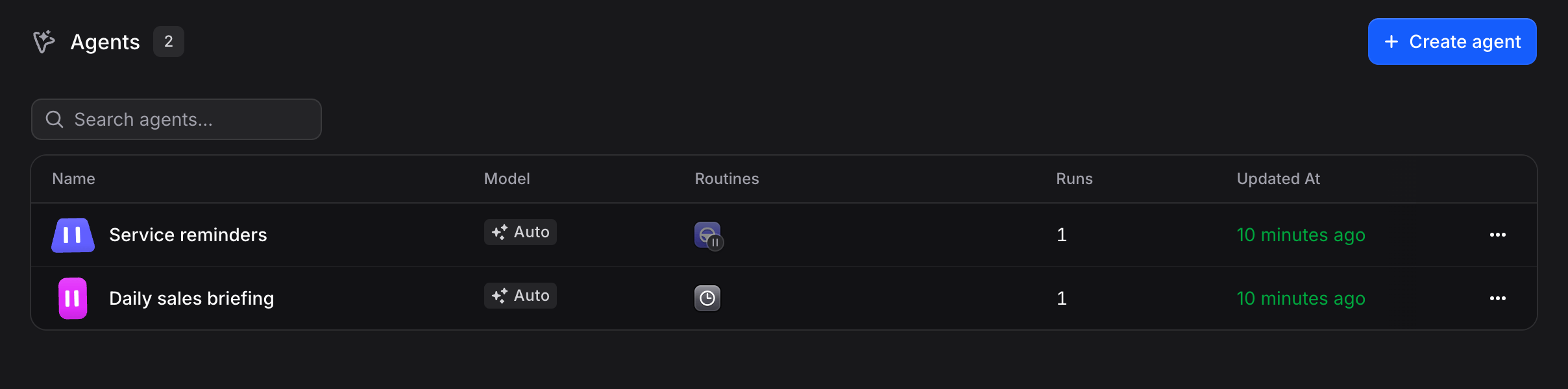
Settings
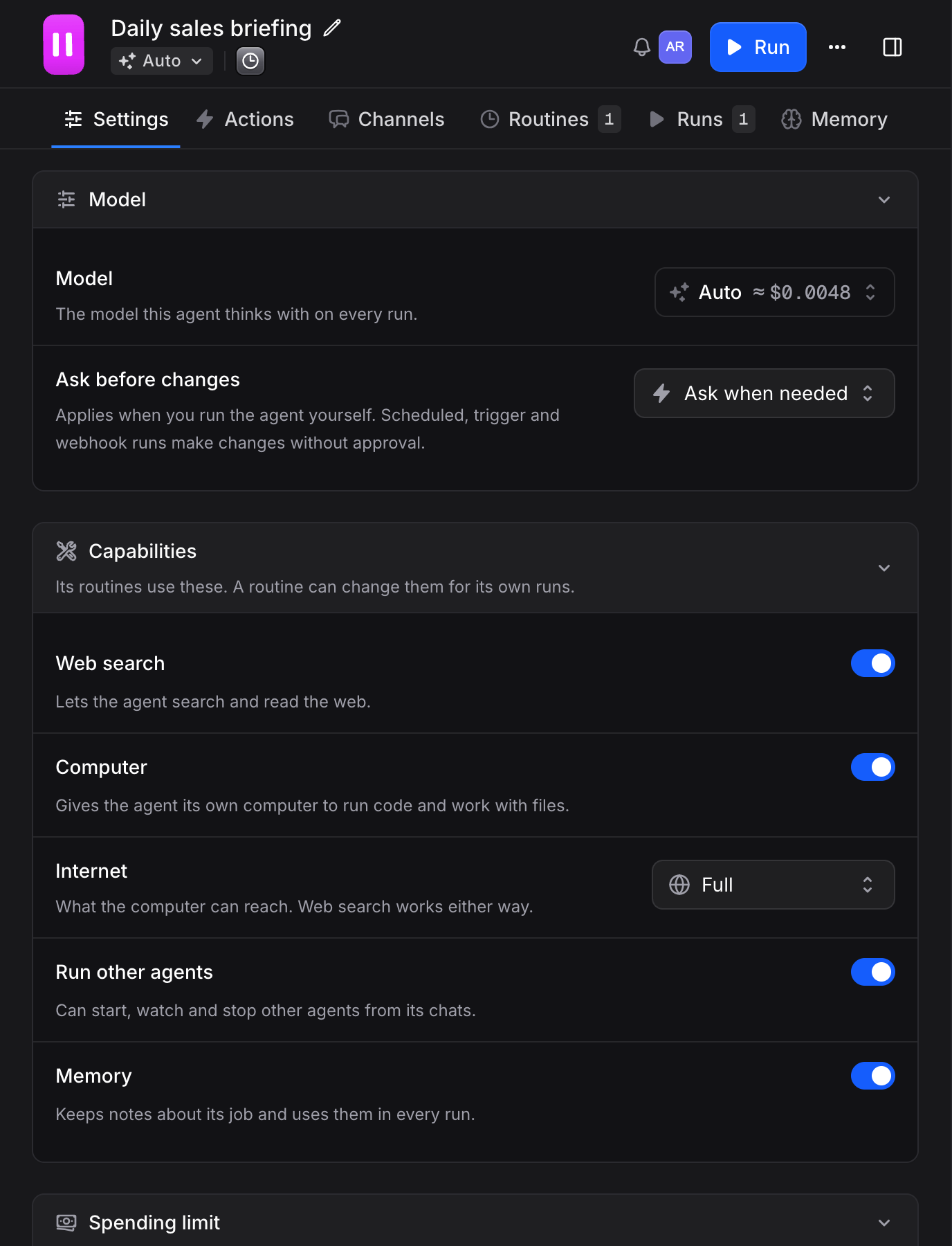
- Instructions: the job, in your own words.
- Model: the model the agent thinks with on every run. Ask before changes sets when the agent asks you to approve a change first: Ask when needed, Always ask or Never ask. It applies when you run the agent yourself. Routine runs never wait, since nobody is there to answer.
- Capabilities: Web search lets the agent search and read the web. Computer gives it its own computer to run code and work with files, and Internet sets what that computer can reach (Full, Trusted sites or Off). Run other agents lets it start, watch and stop other agents. Memory lets it keep notes about its job. A routine can change the model, web search and the computer for its own runs. Click Reset in the routine to go back to the agent’s settings.
- Spending limit: a monthly limit for this agent. Once reached, runs pause until you raise it. It resets on the 1st of each month. Only members who manage billing see it.
Actions
You don’t have to add apps one by one. On every run the agent can use every app you connect, like Gmail or Google Calendar, and asks you to connect an app the first time it needs one. Add an app on the Actions tab only to lock its settings (for example, which sheet it writes to) or to set up one the agent cannot find on its own, like your own API.Runs
Each run shows a status: Running, Completed, Waiting approval, Waiting response, Needs a decision, Needs a connection, Failed or Canceled. Open a run to see what the agent did, or write in it to give more directions. When a run needs you, it also shows up in Tasks.Subscribers
At the top of the agent, click Subscribe (or the faces of people already subscribed) to choose who hears from this agent. Subscribers are notified when the agent needs them, like an approval or an answer, and when a run fails. Anyone can subscribe themselves. Members who manage agents can add or remove anyone.Mention an agent in a comment
Type@ and the agent’s name in a comment on a contact or a table record. The agent starts a run and answers in the same thread.
Memory
What an agent learns about its job lives on the agent. See or delete it on the agent’s Memory tab. Memory explains how this differs from contact and user memory.FAQ
What is the difference between an agent and an assistant?
What is the difference between an agent and an assistant?
An assistant replies to your customers on your channels. An agent works for your team, doing a job you describe, on a schedule or whenever you ask.
My agent does nothing when a routine runs
My agent does nothing when a routine runs
Check that the agent has Instructions. Every run follows them, so without instructions the agent has nothing to do.
A run says Needs a connection
A run says Needs a connection
The agent needs an app you haven’t connected yet. Open the run, or Tasks, and connect it. The run continues once it is connected.
Which chats can an agent read?
Which chats can an agent read?
Its own runs and chats shared with your organization. An agent never reads a member’s private chat.
What happens when I delete an agent?
What happens when I delete an agent?
Its routines stop and it disappears from the list. Past runs stay in your chats.
Can I copy an agent?
Can I copy an agent?
Yes. Open the agent’s options and duplicate it. The copy is named after the original with “(Copy)”.