

New to Invent? Start with Your First Assistant to learn the fundamentals before diving into this advanced tutorial.
What We’re Building
Sunrise Yoga Studio needs an AI assistant that works 24/7 on WhatsApp. When customers message at 11 PM asking to book a class, the assistant will:- Answer questions about classes, pricing, and schedules
- Check real-time availability in Google Sheets
- Book them into a class
- Send a Google Calendar invite
- Process payment via Stripe
- Verify payment completion
- Email a confirmation receipt
The Business Setup
Sunrise Yoga offers three packages:
Each class has a maximum of 15 participants. The studio offers:
- Morning Flow: Mon/Wed/Fri at 7 AM
- Power Yoga: Tue/Thu at 6 PM
- Gentle Stretch: Sat at 9 AM
Step 1: Create the Assistant
From your dashboard, click Assistants in the sidebar, then click the Create Assistant button.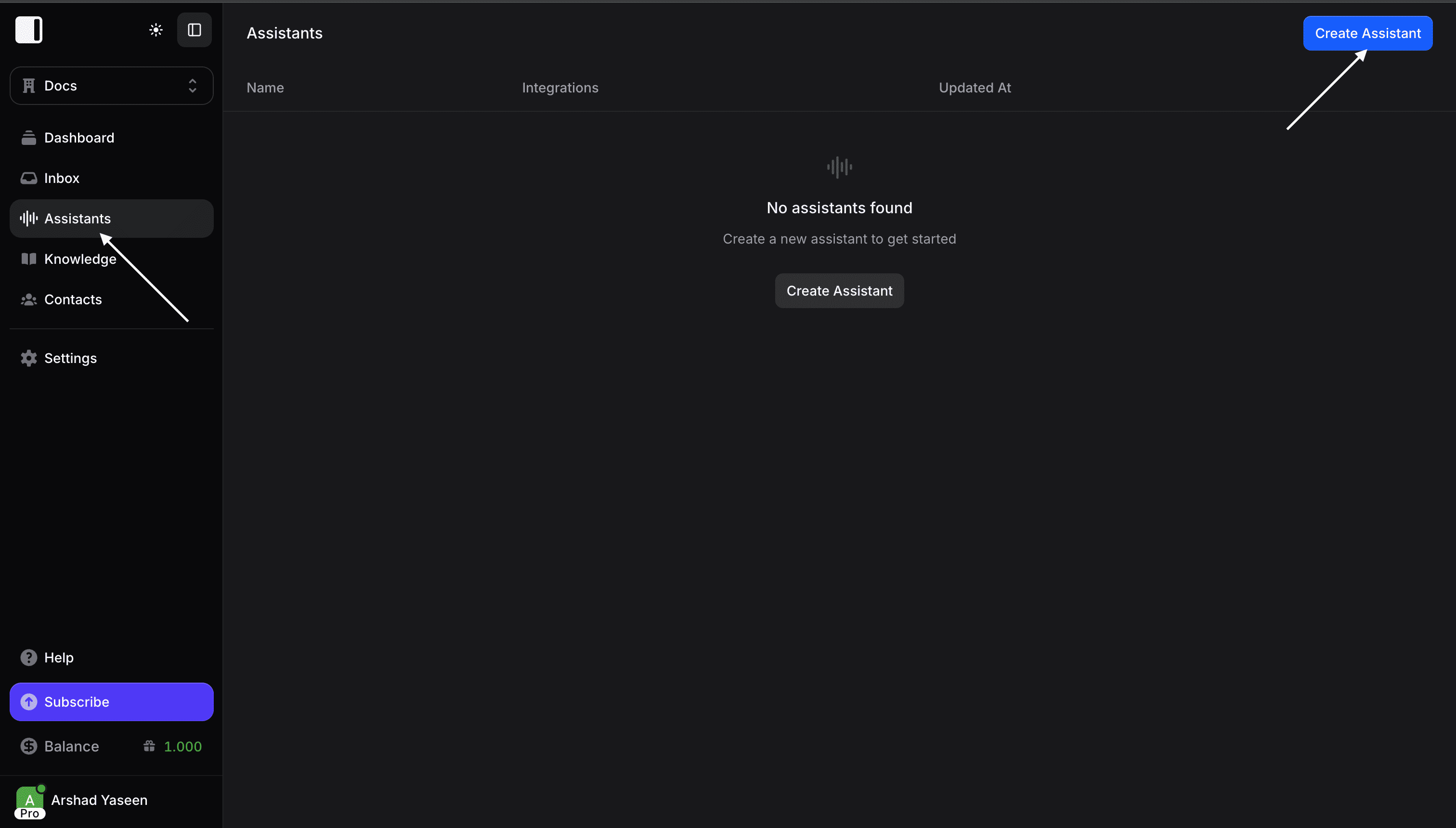
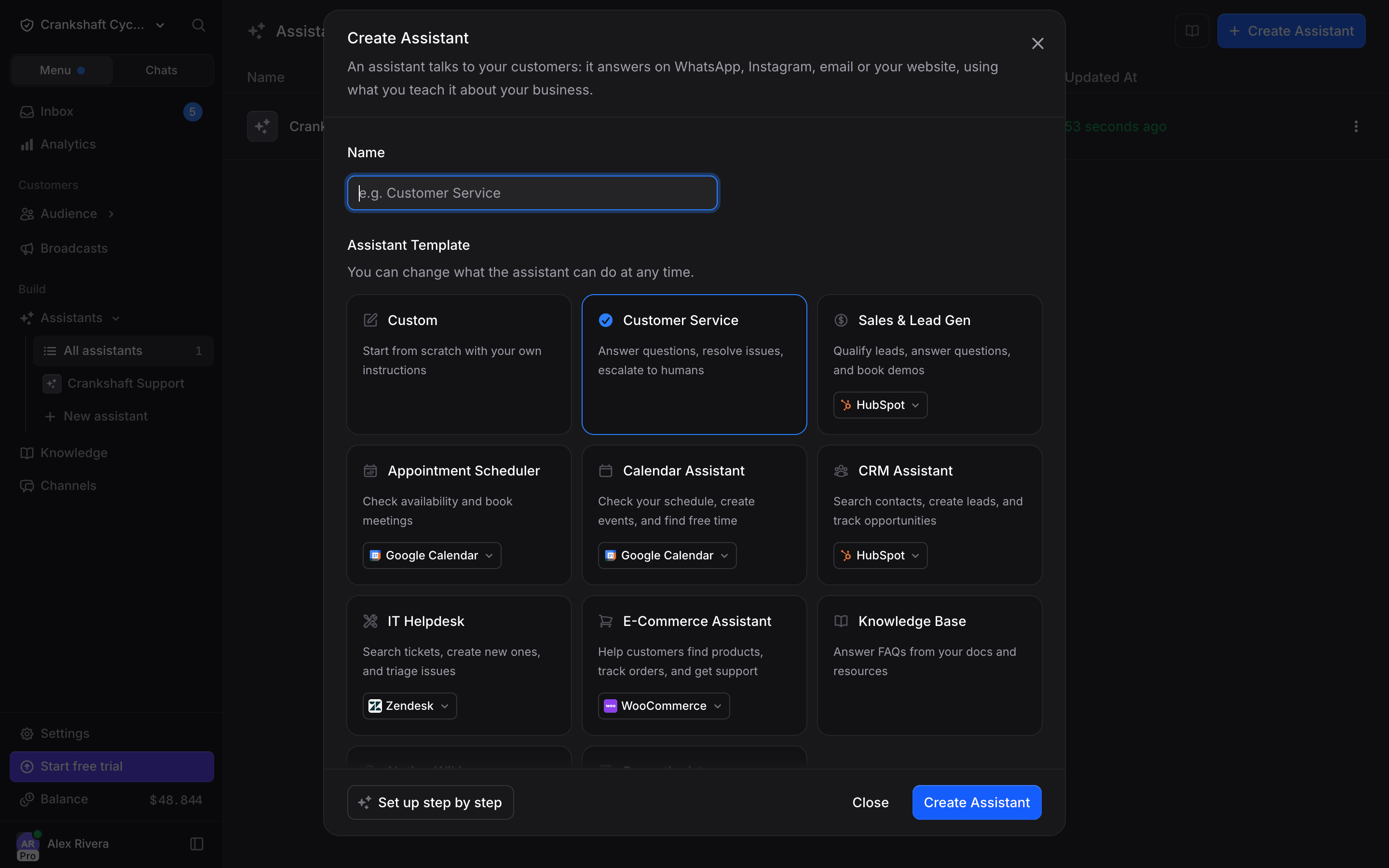
- Name: Enter “Sunrise Yoga Concierge”
- Assistant Template: Customer Service is preselected. Pick Custom, since we will write our own instructions
Step 2: Configure Assistant Settings
You’ll see several tabs: Settings, Knowledge, Actions, and Channels. The Web Widget tab shows up once you switch the widget on. Let’s start with Settings. At the top of the page, the avatar and name are edited in place: click the avatar to upload your studio’s logo, and click the name to rename it. Both appear in conversations. The pill under the name shows the AI model. Leave it on Auto to let Invent choose the best model for each response. The same setting is a row in the Model & Timezone card near the bottom of Settings.Instructions
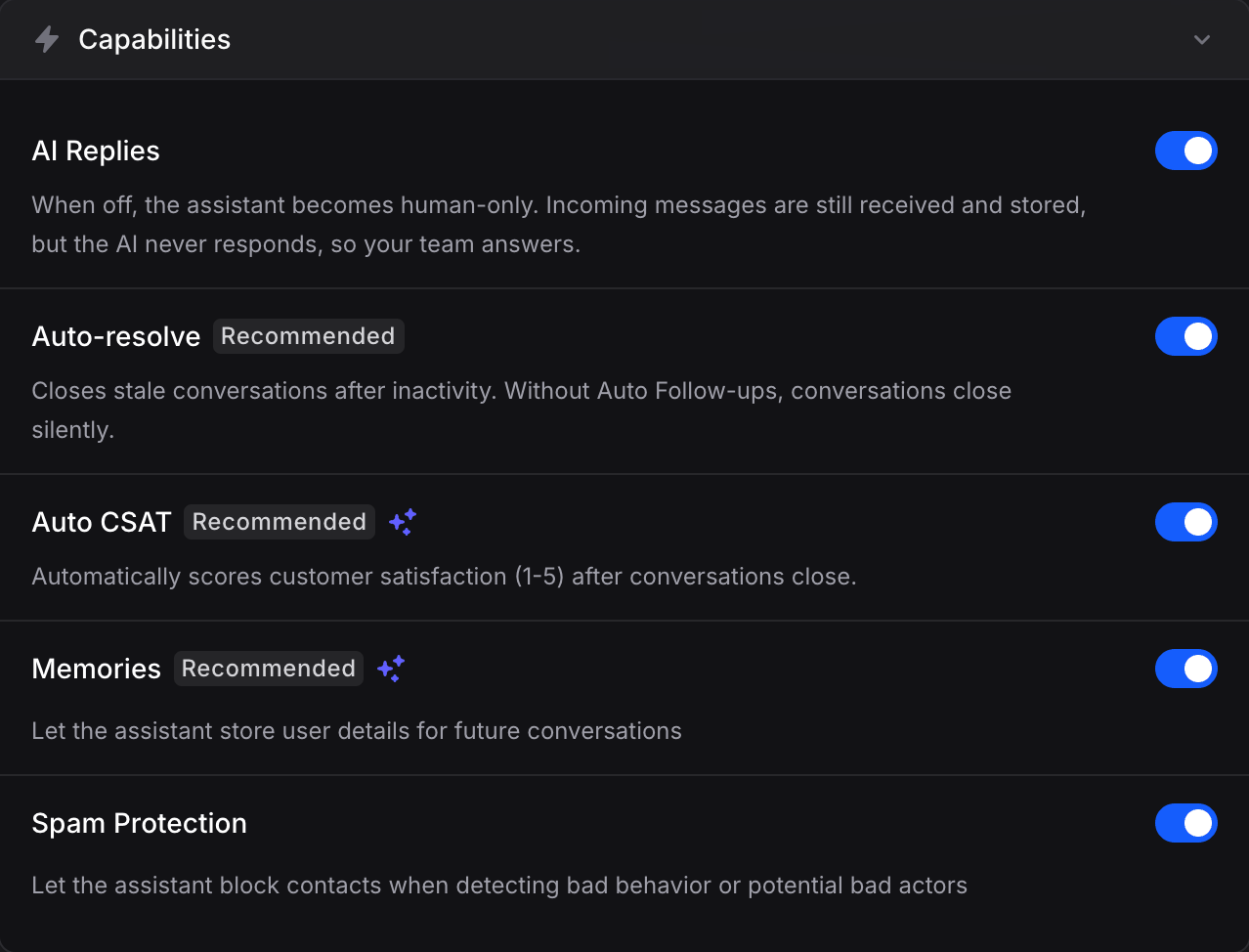
Instructions define your assistant’s behavior, personality, and rules. This is where you tell the assistant how to act, not what information it knows (that goes in Knowledge). The Templates button in the footer of the Instructions card drops in a template’s text (it replaces what is in the box). Let’s write custom instructions instead:Capabilities
Step 3: Add Knowledge
Knowledge teaches your assistant factual information about your business. Click the Knowledge tab.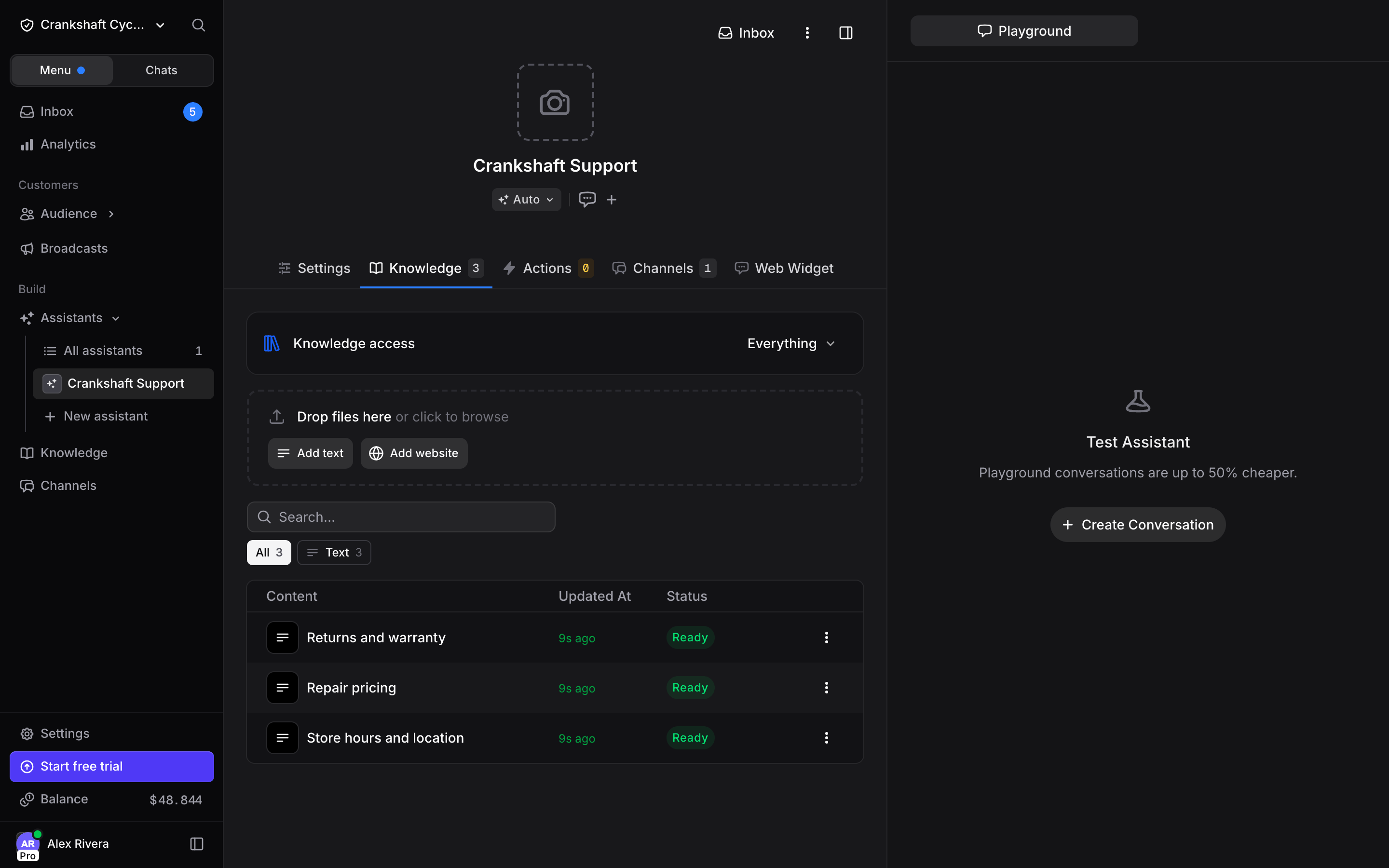
Adding Studio Information
Under the Knowledge access row, a strip lets you drop files, Add text, or Add website. The buttons open the Add Knowledge dialog, which has three tabs:- File: Upload PDF, Word, or text files (up to 50 MB each)
- Text: Add content directly
- Website: Paste a URL to crawl your website
Adding a Text Knowledge Item
Click Add text and enter your studio information: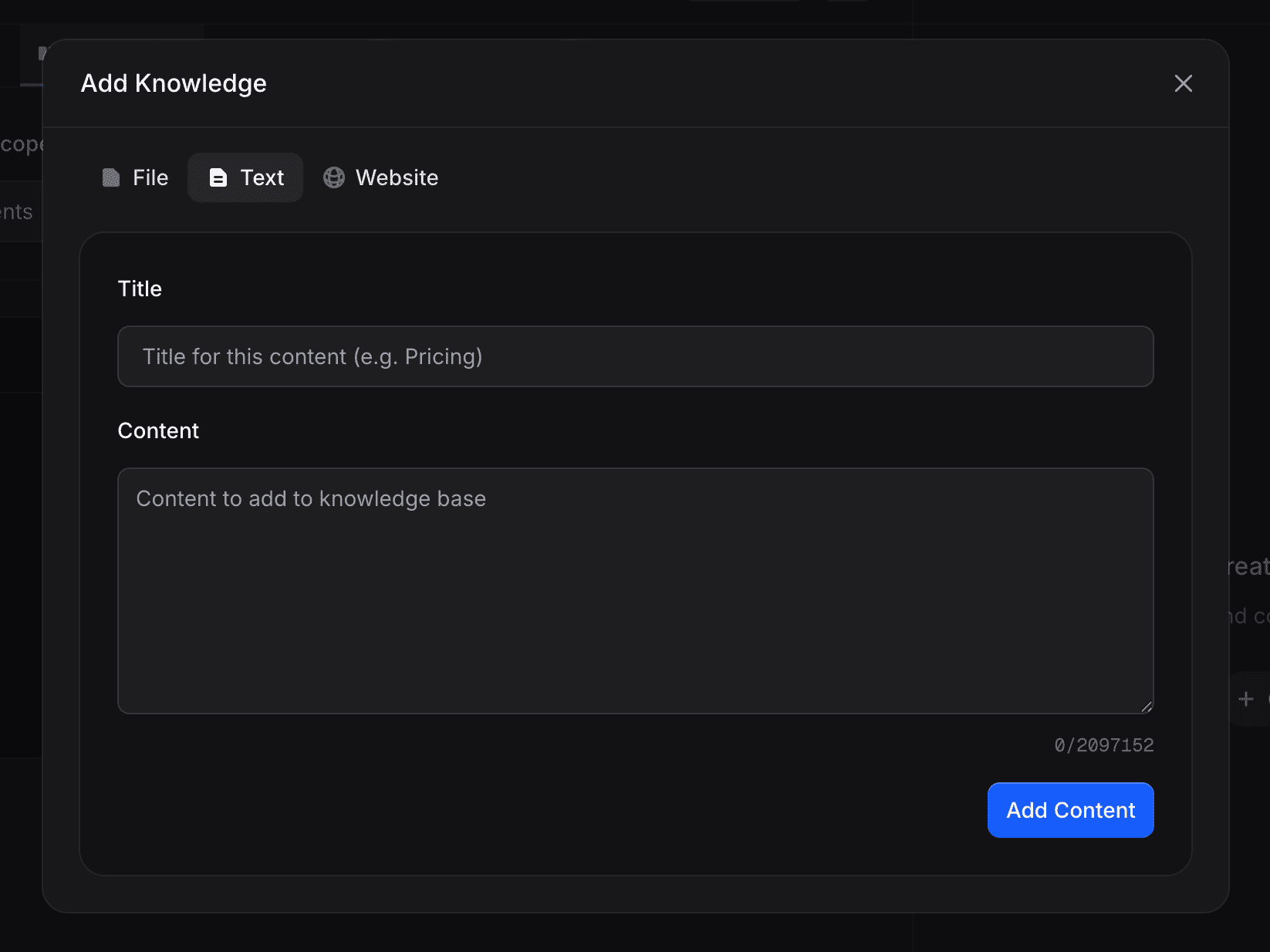
Step 4: Connect Actions
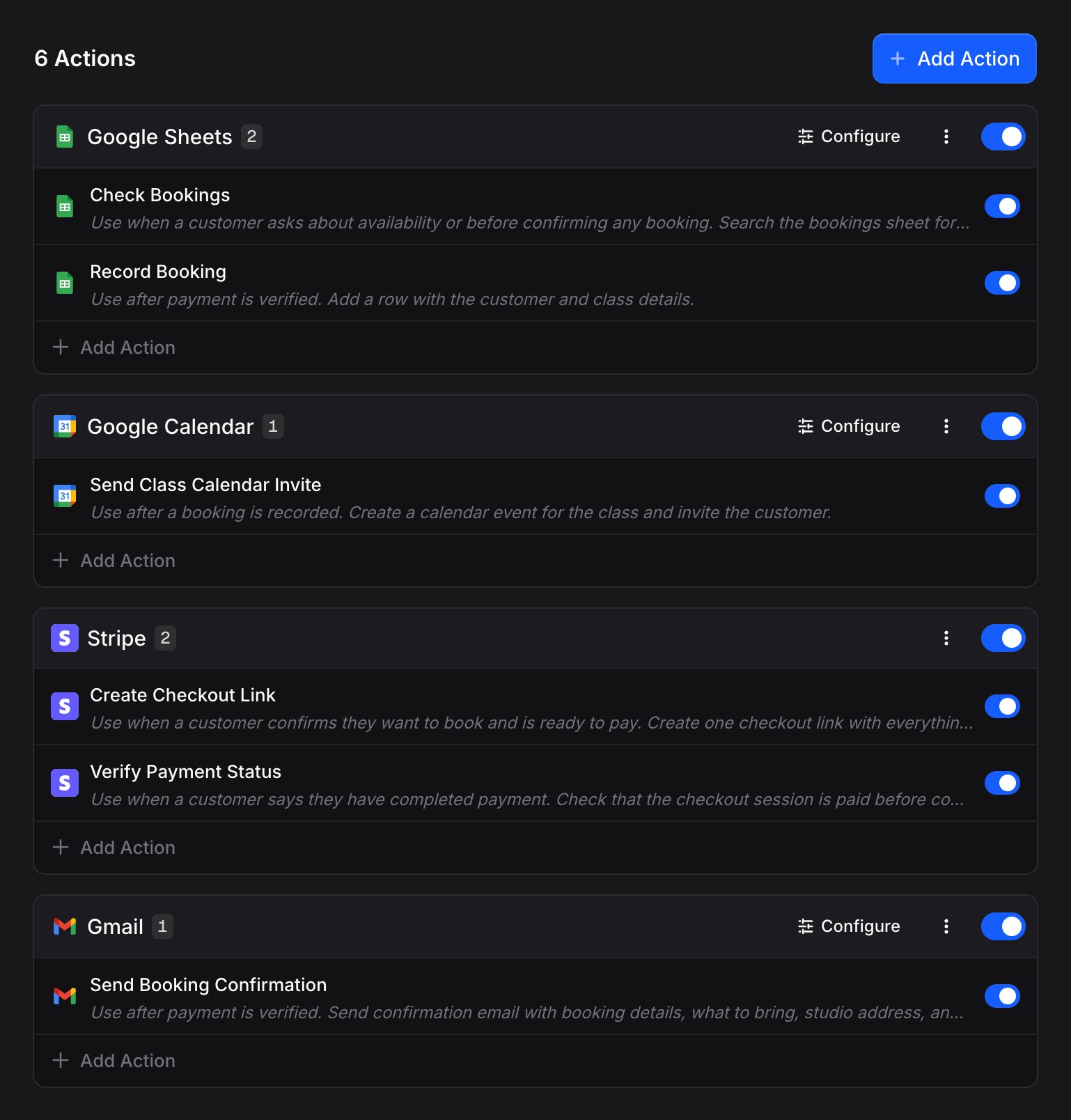
Actions let your assistant actually do things, not just talk about them. Click the Actions tab.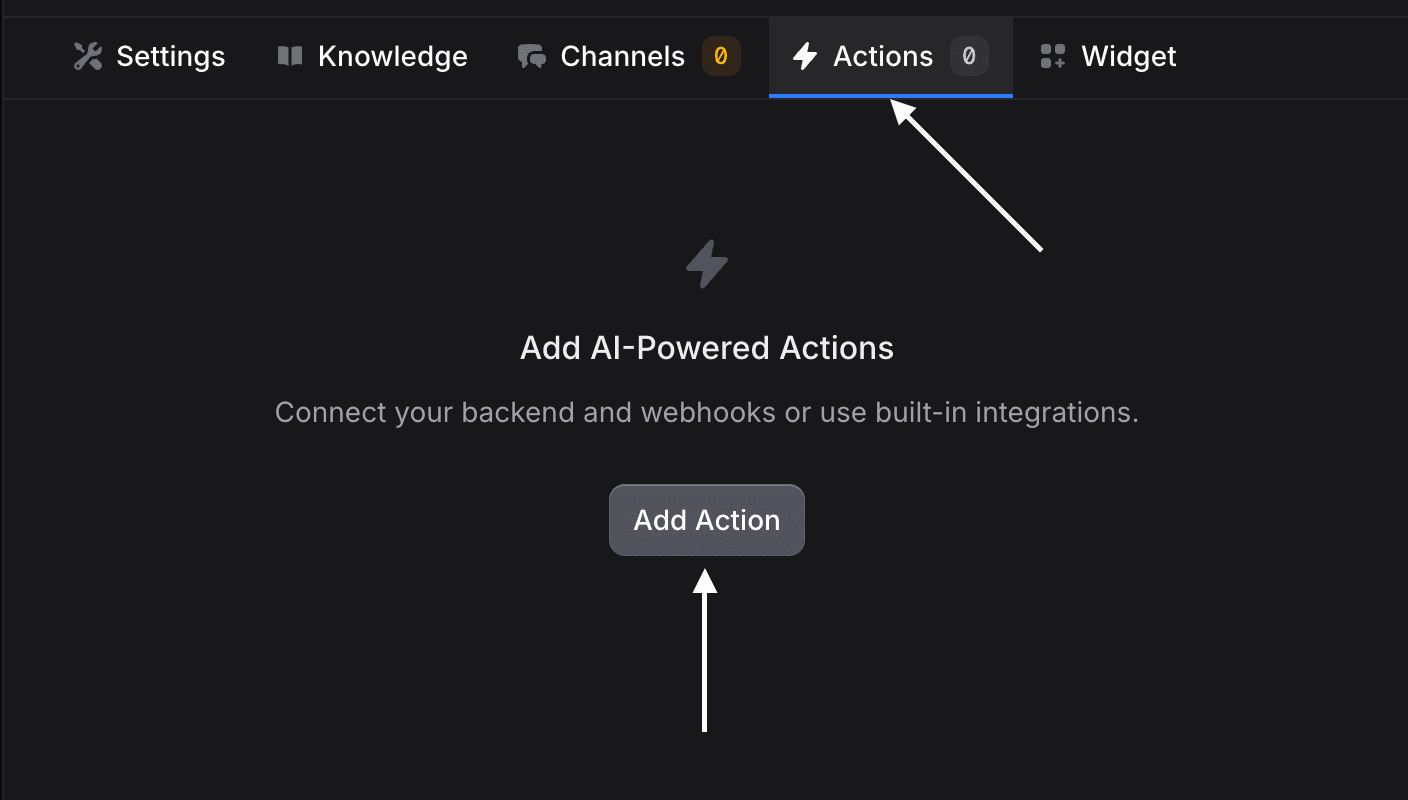
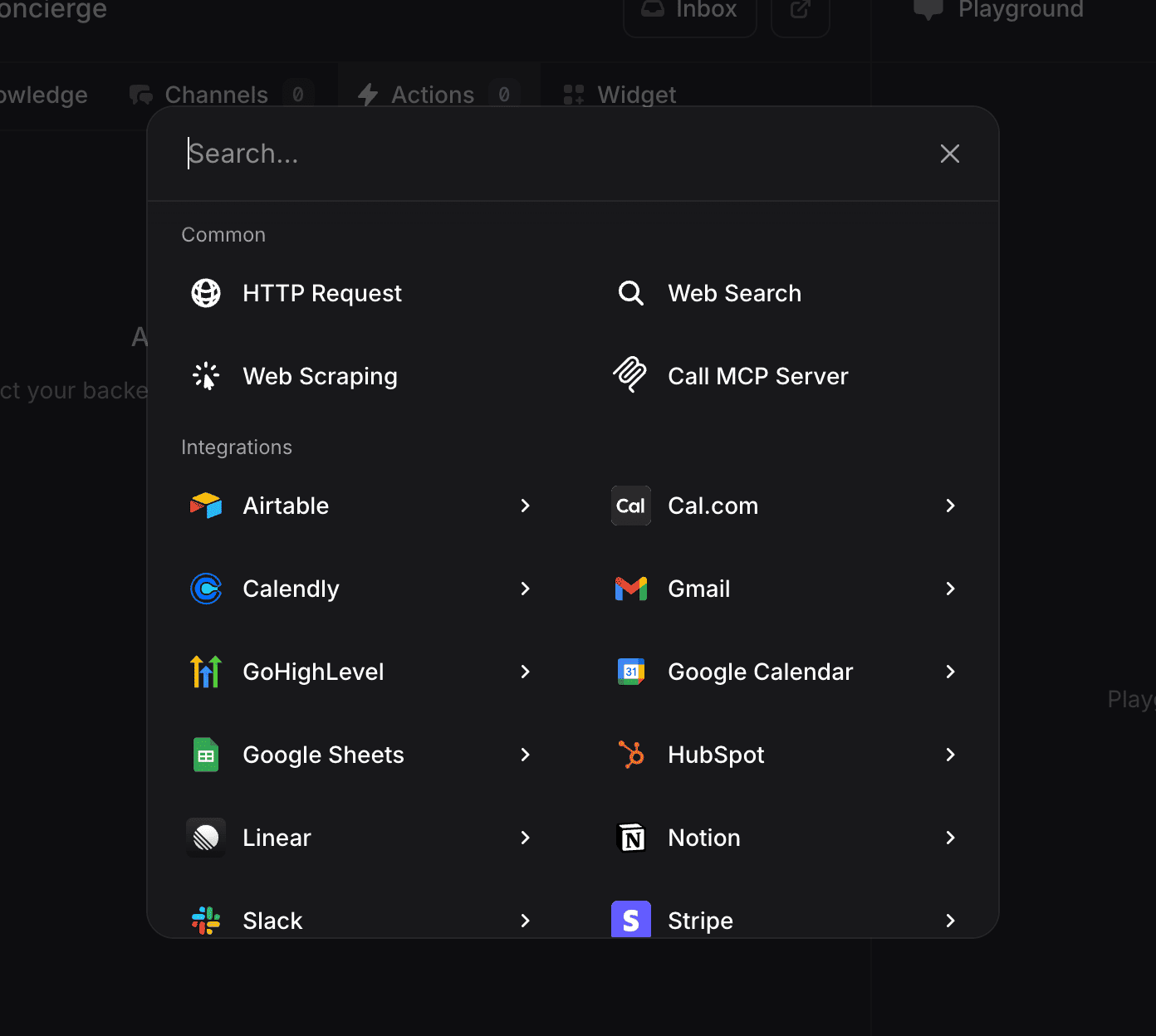
- Common: Web Search, HTTP Request, Web Scraping, Call Workflow, Call MCP Tool
- Integrations: Google Calendar, Google Sheets, Stripe, Gmail, Slack, and many more
- Google Sheets: Track bookings (the assistant uses Knowledge for class details)
- Google Calendar: Send calendar invites
- Stripe: Create checkout links and verify payments
- Gmail: Send confirmation emails
Bookings Spreadsheet SetupCreate a spreadsheet with columns: Customer Name, Email, Phone, Class Name, Date, Time, Package Type, Payment Status.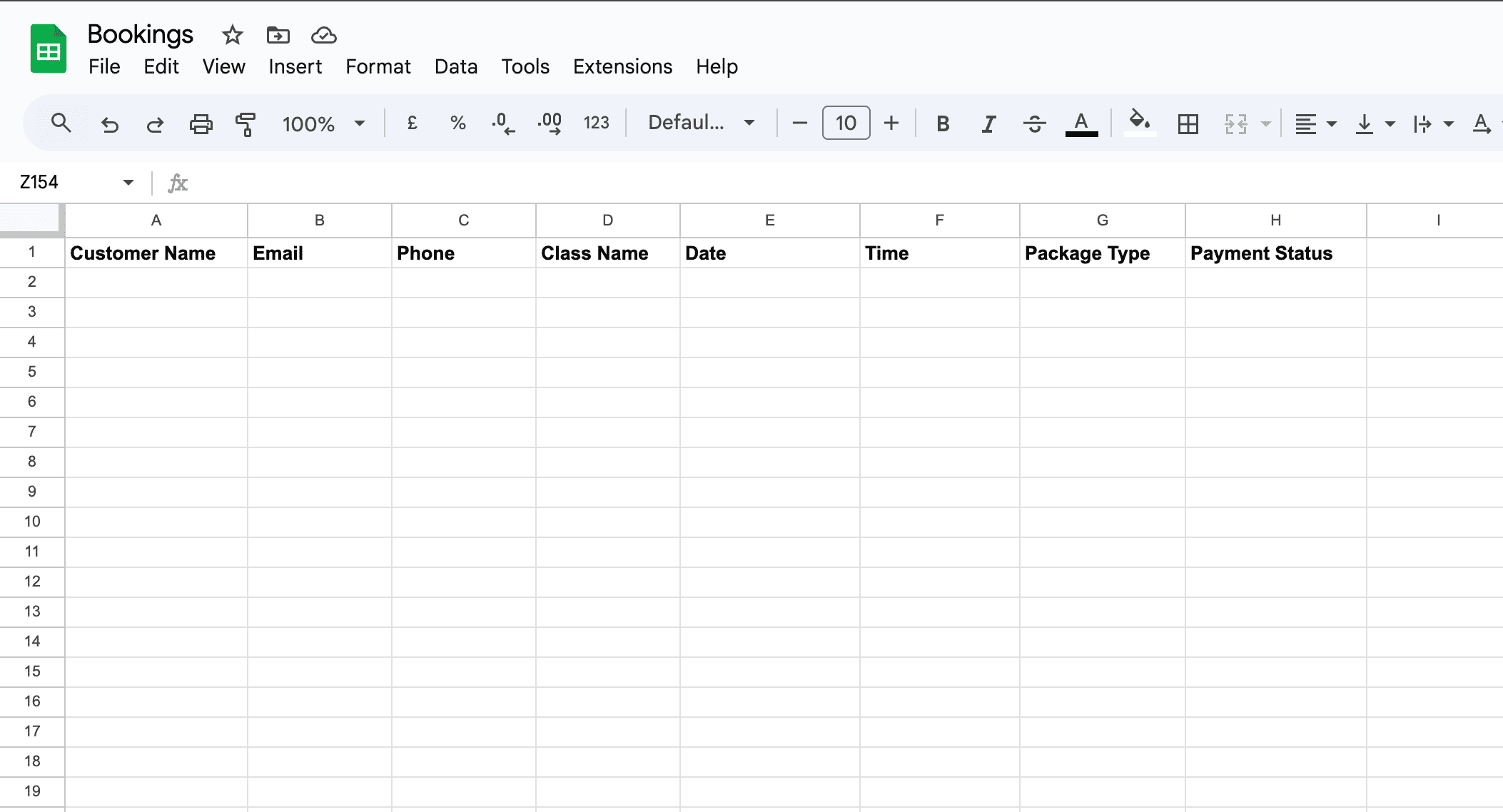
The assistant gets class details (times, instructors, max capacity of 15) from Knowledge, then counts bookings in this spreadsheet to calculate availability.
Action 1: Check Bookings
Click Google Sheets in the integrations list.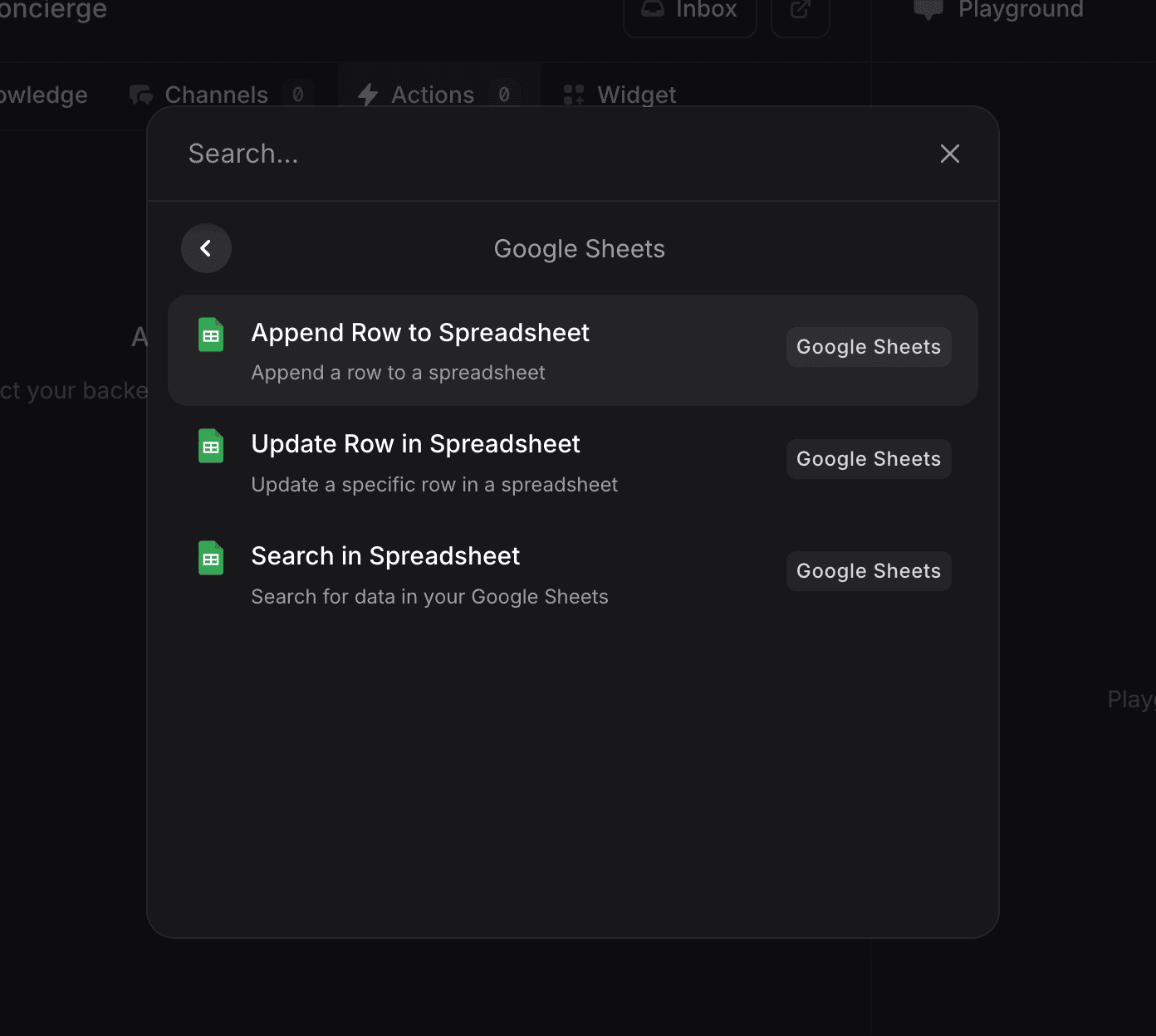
- Append Row to Spreadsheet: Add data to a sheet
- Search in Spreadsheet: Find data in a sheet
- Etc.
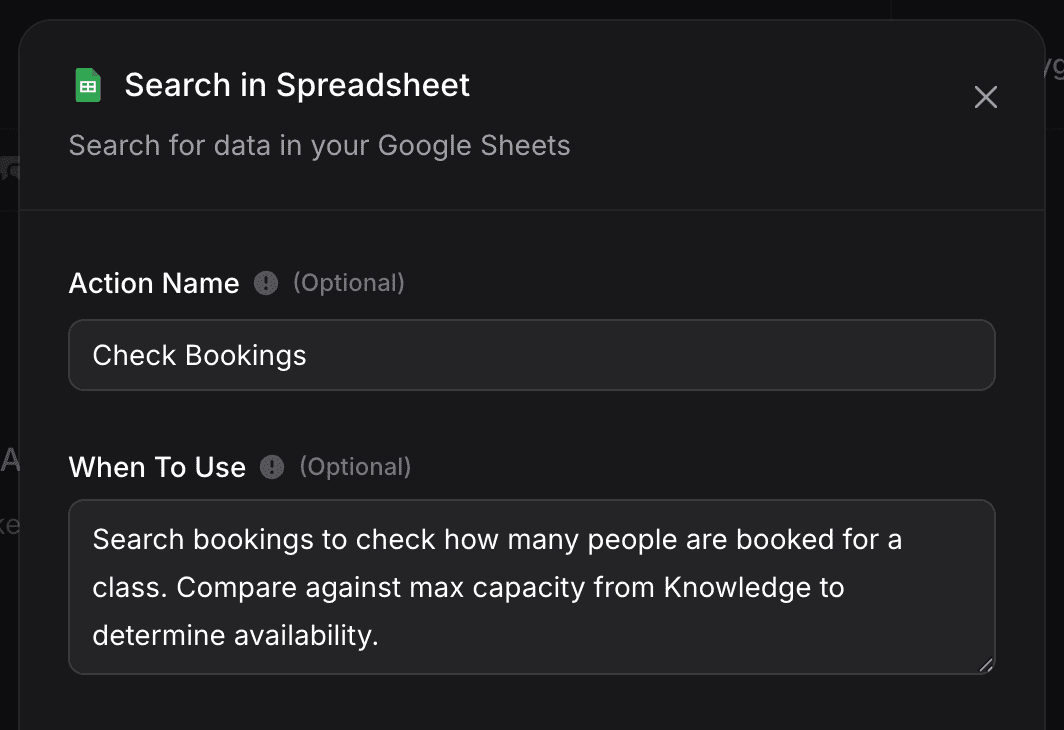
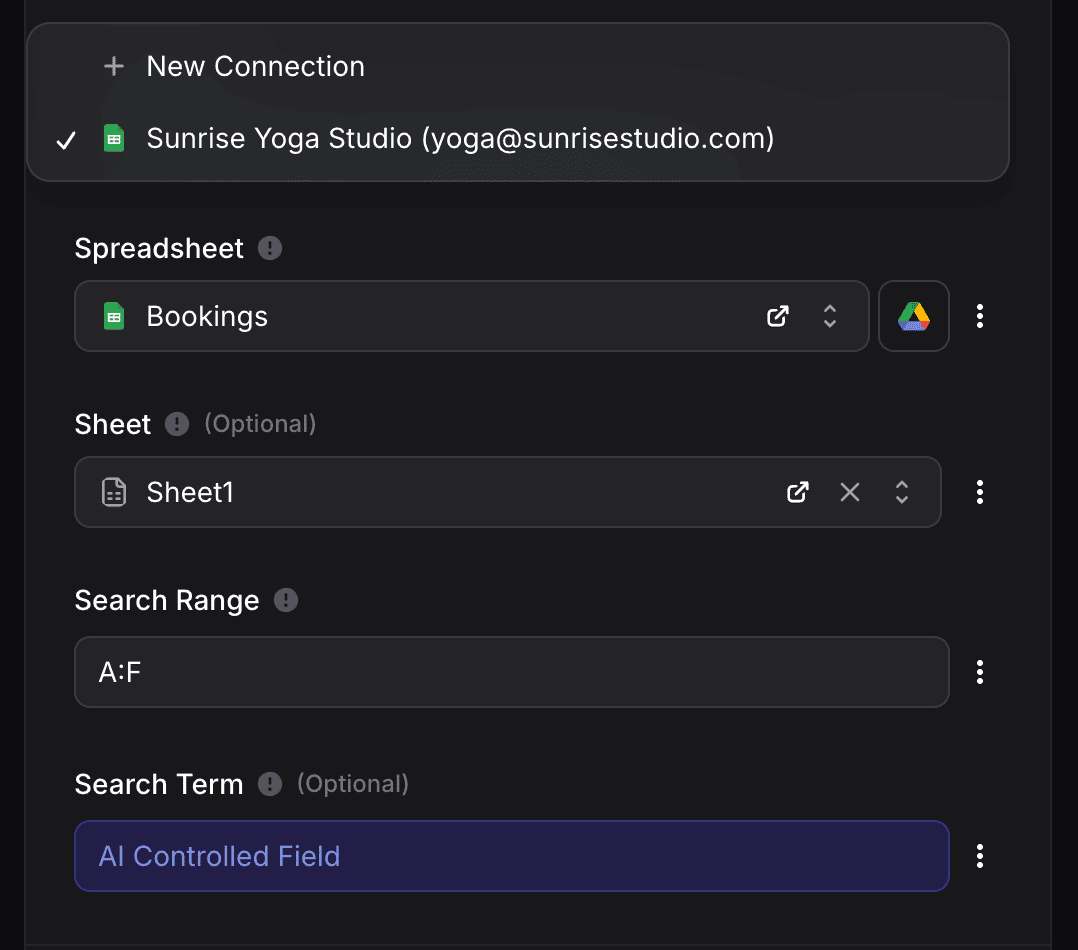
A:Z for entire columns.
Search Term: Leave as AI Controlled Field. The assistant automatically determines the class name and date from the conversation.
How Availability WorksWhen a customer asks to book Saturday’s Gentle Stretch:
- Assistant knows from Knowledge: Max capacity = 15, Time = 9 AM, Instructor = Linda
- Assistant searches Bookings spreadsheet for “Gentle Stretch” + “Jan 18”
- Finds 2 existing bookings → calculates 13 spots available
- Responds: “Gentle Stretch on Saturday at 9 AM has spots available!”
Understanding Auto vs Manual FieldsEach field has a menu button (⋮) on the right. Click it to switch between:
- Auto: The AI determines the value from conversation context.
- Manual: You enter a fixed value that never changes.
Action 2: Record Booking
Click Add Action → Google Sheets → Append Row to Spreadsheet.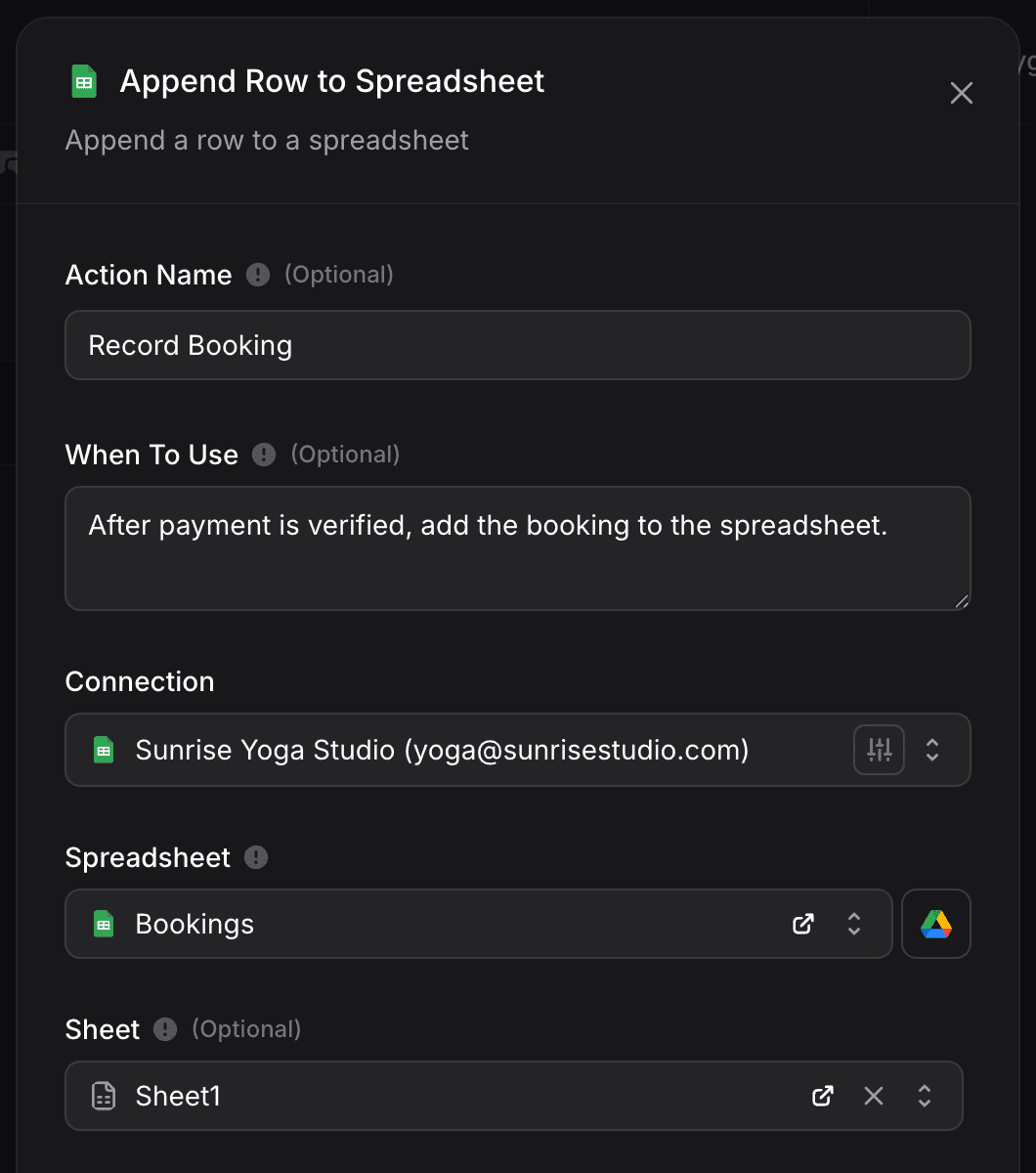
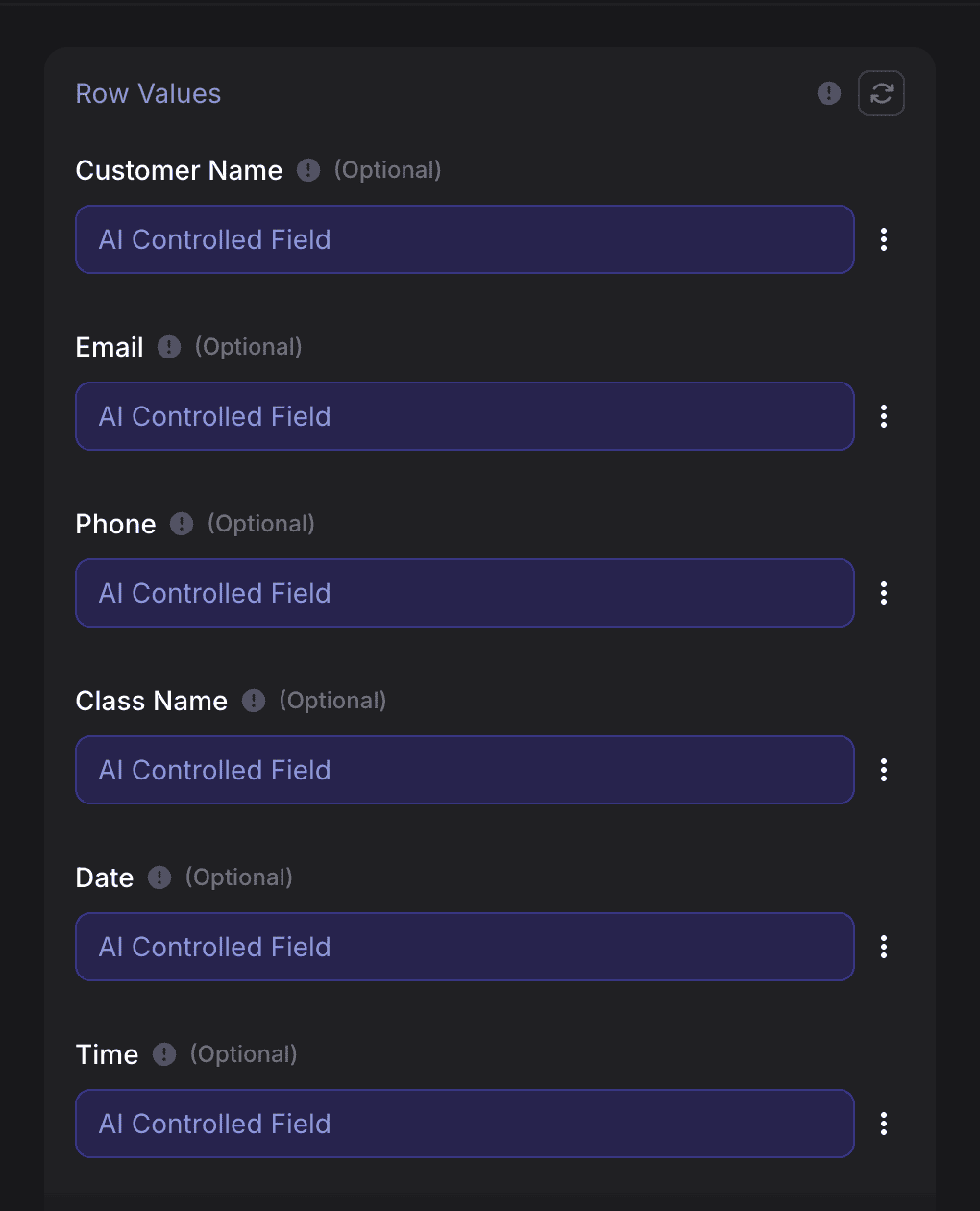
Your spreadsheet’s first row must contain column headers. The action reads these headers to generate the Row Values fields below.
- Customer Name: AI Controlled Field
- Email: AI Controlled Field
- Phone: AI Controlled Field
- Class Name: AI Controlled Field
- Date: AI Controlled Field
- Time: AI Controlled Field
- Package Type: AI Controlled Field
- Payment Status: AI Controlled Field
Action 3: Create Calendar Event
Click Add Action → Google Calendar.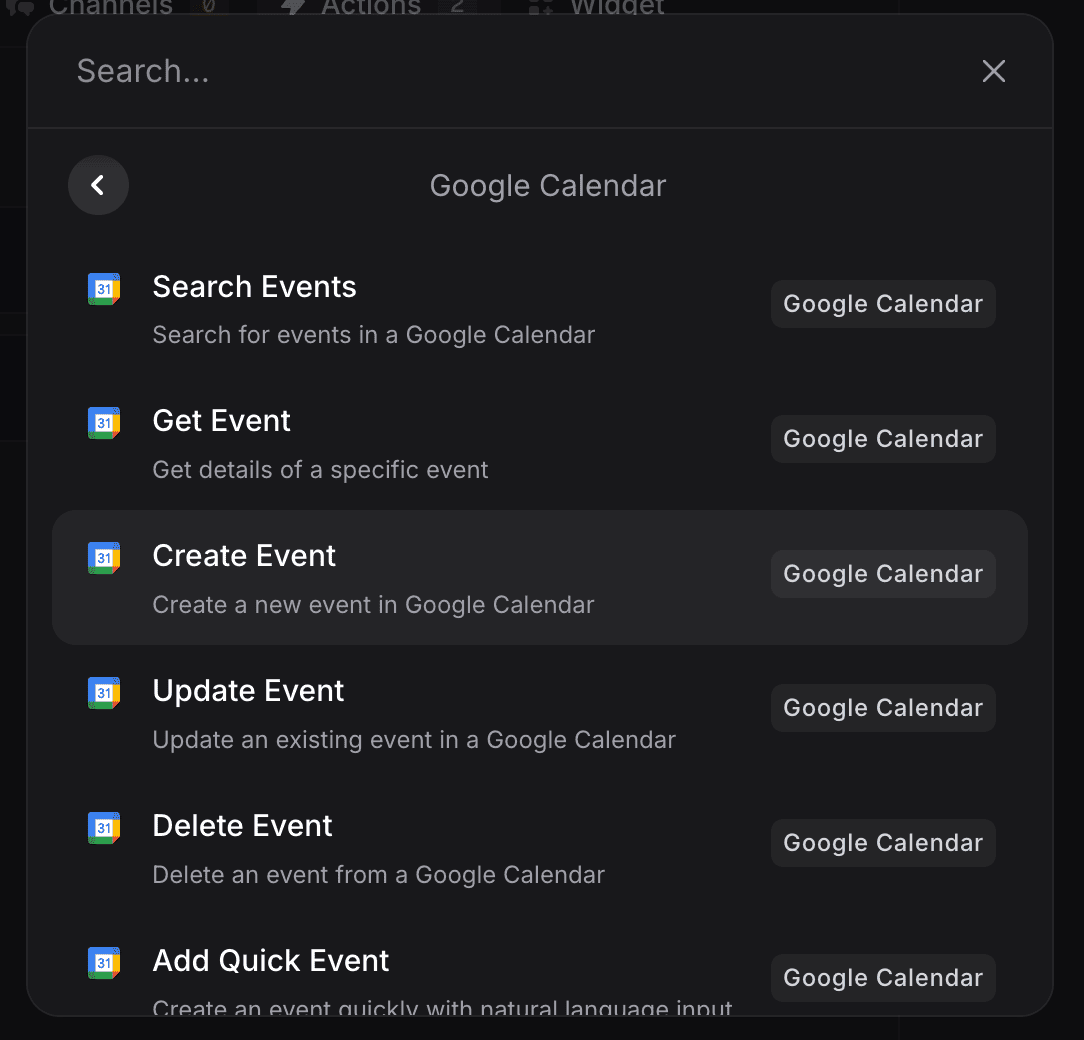
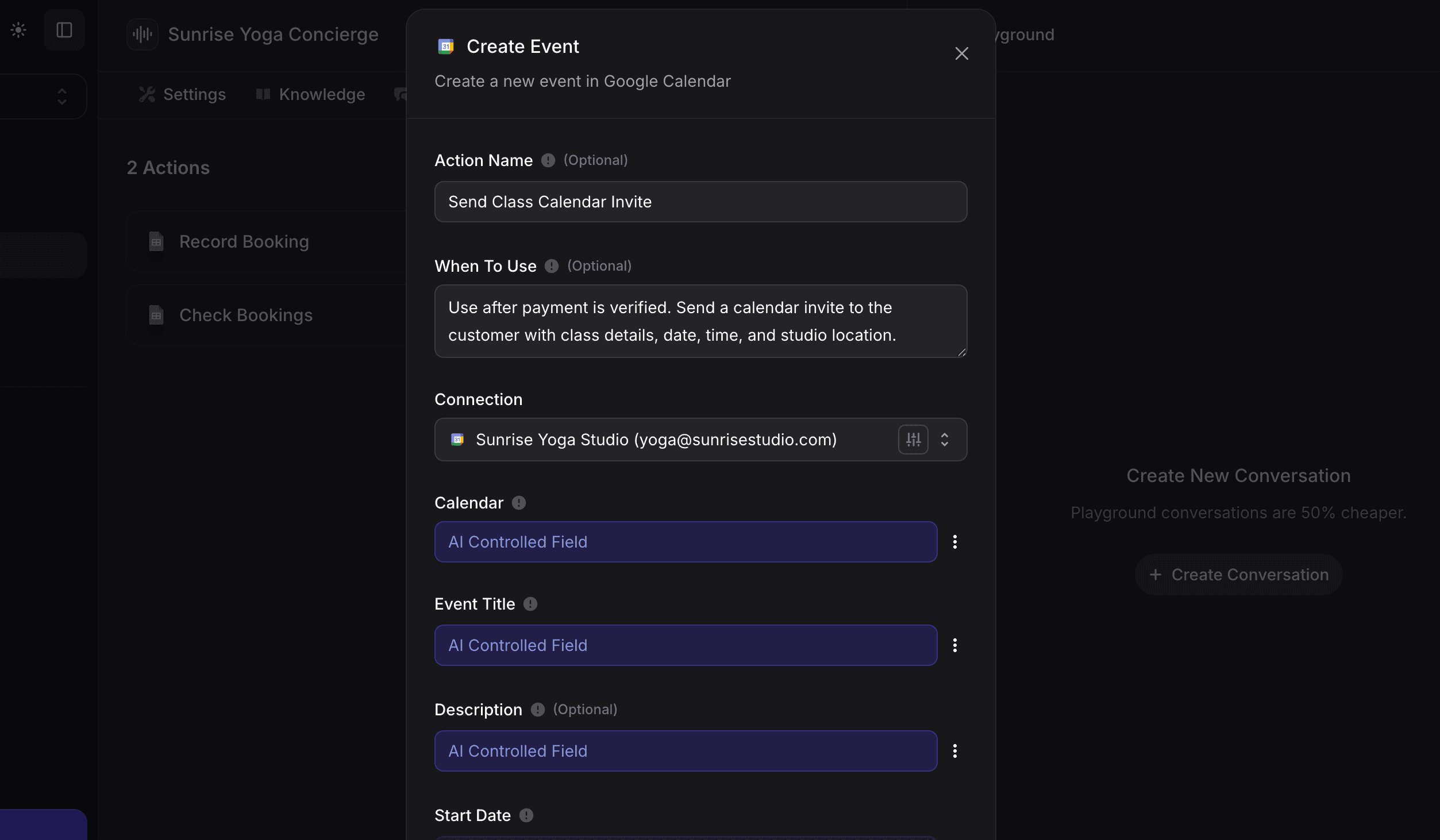
- Event Title: AI generates something like “Morning Flow at Sunrise Yoga”
- Description: AI includes class details, instructor, what to bring
- Start Date / End Date: AI extracts from the booked class
- Attendees Email: Customer’s email from conversation
- Location: Can be set to Manual with your studio address
- Visibility: “Default”
- Reminder Method: “Email and In-app Notification”
- Reminder Time: “30 minutes”
Action 4: Create Checkout Link
Click Add Action → Stripe.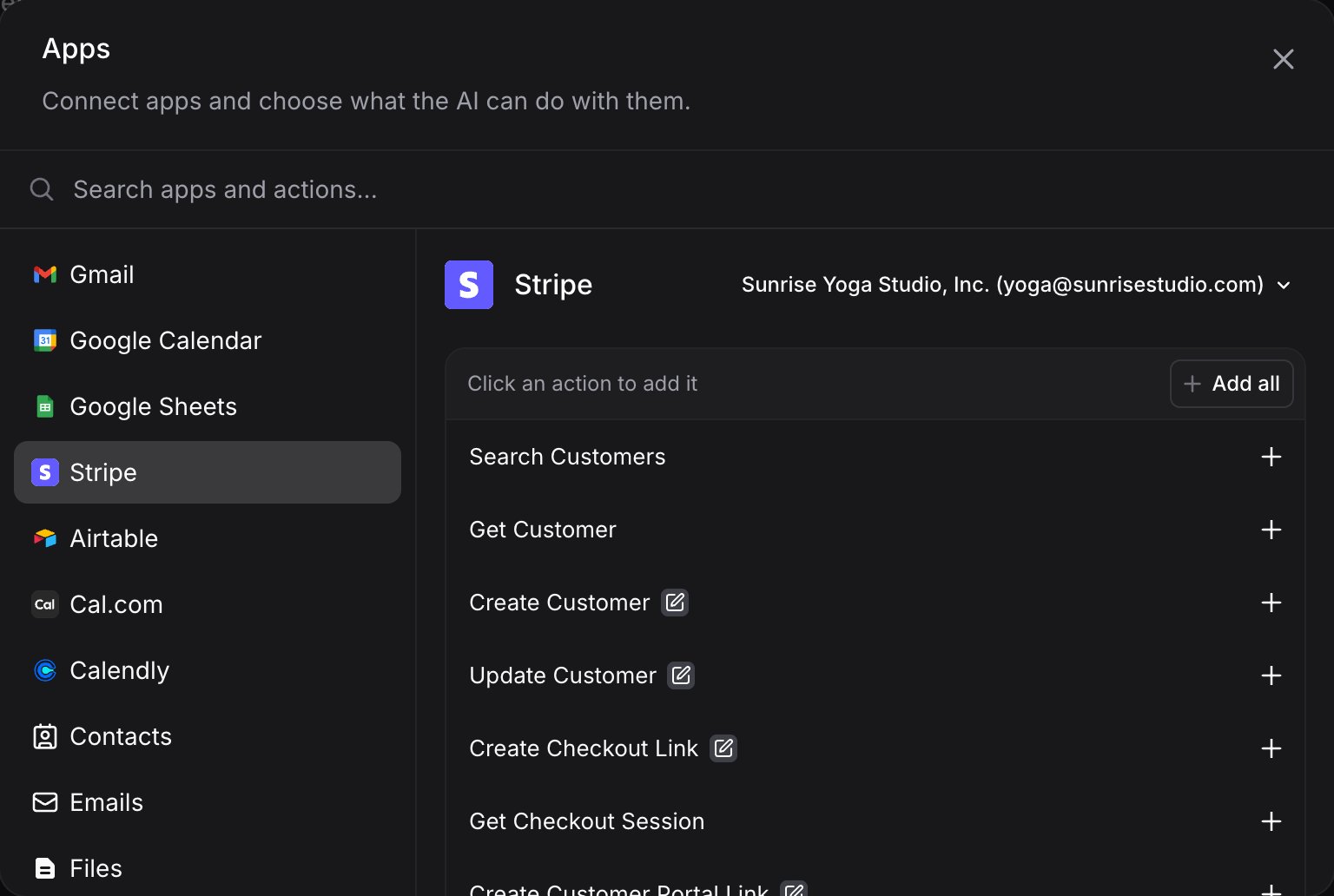
- Create Checkout Link: A single-use link for one or more products
- Get Checkout Session: Check whether that link was paid
Stripe also offers Create Payment Link, a permanent link you can reuse. It cannot tell you whether a customer paid, so for bookings use a checkout link.
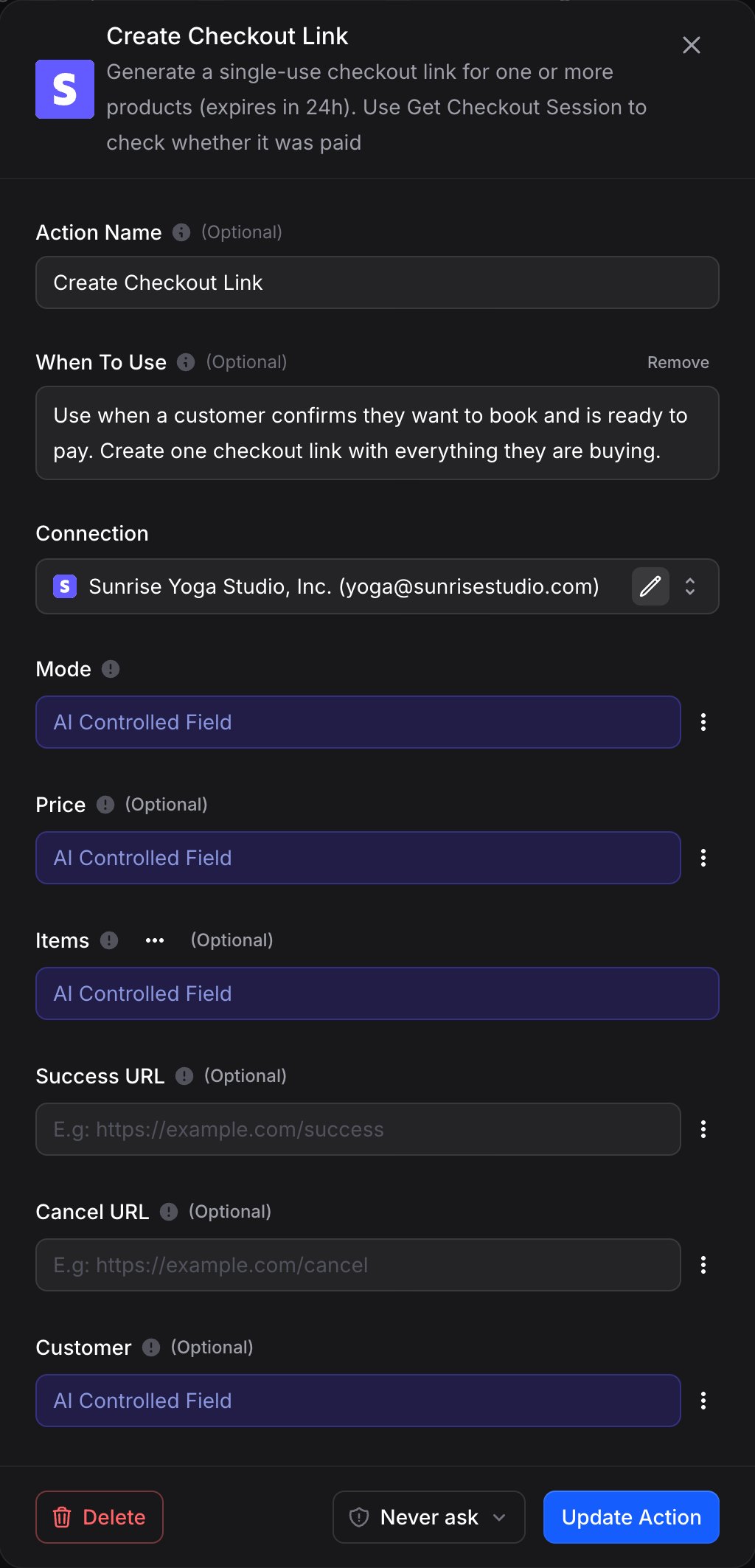
- Drop-In → $25
- Starter Pack → $90
- Unlimited → $150/month (subscription)
You must create corresponding products and prices in your Stripe account that match your packages. The assistant picks from those prices when it builds the link. For recurring packages like Unlimited ($150/month), set up a subscription price in Stripe.
Action 5: Verify Payment
This is critical. When a customer says “I’ve paid”, the assistant needs to verify the payment actually completed. Click Add Action → Stripe → Get Checkout Session, then click the new action in the list to configure it.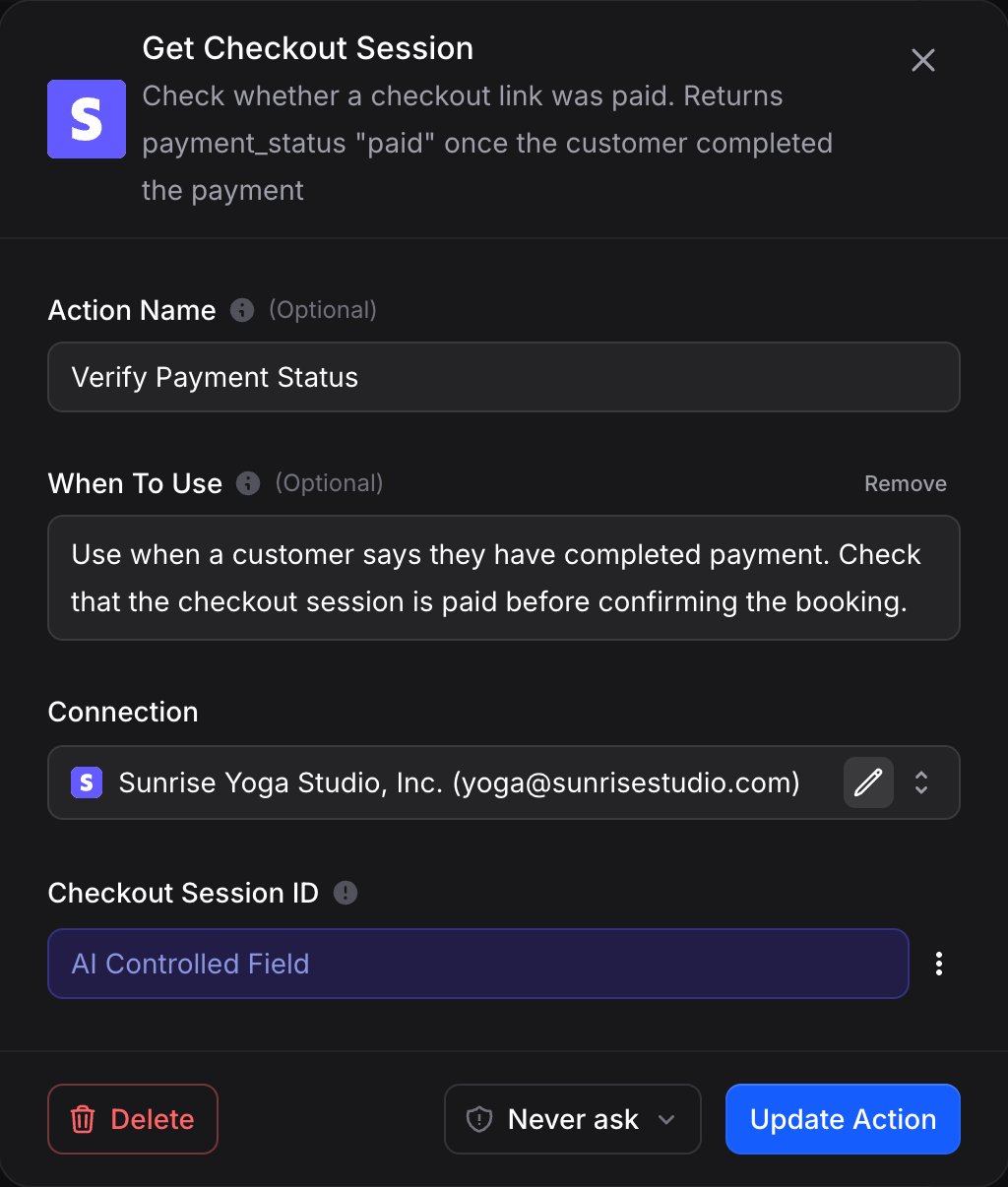
Action 6: Send Confirmation Email
Click Add Action → Gmail → Send Email.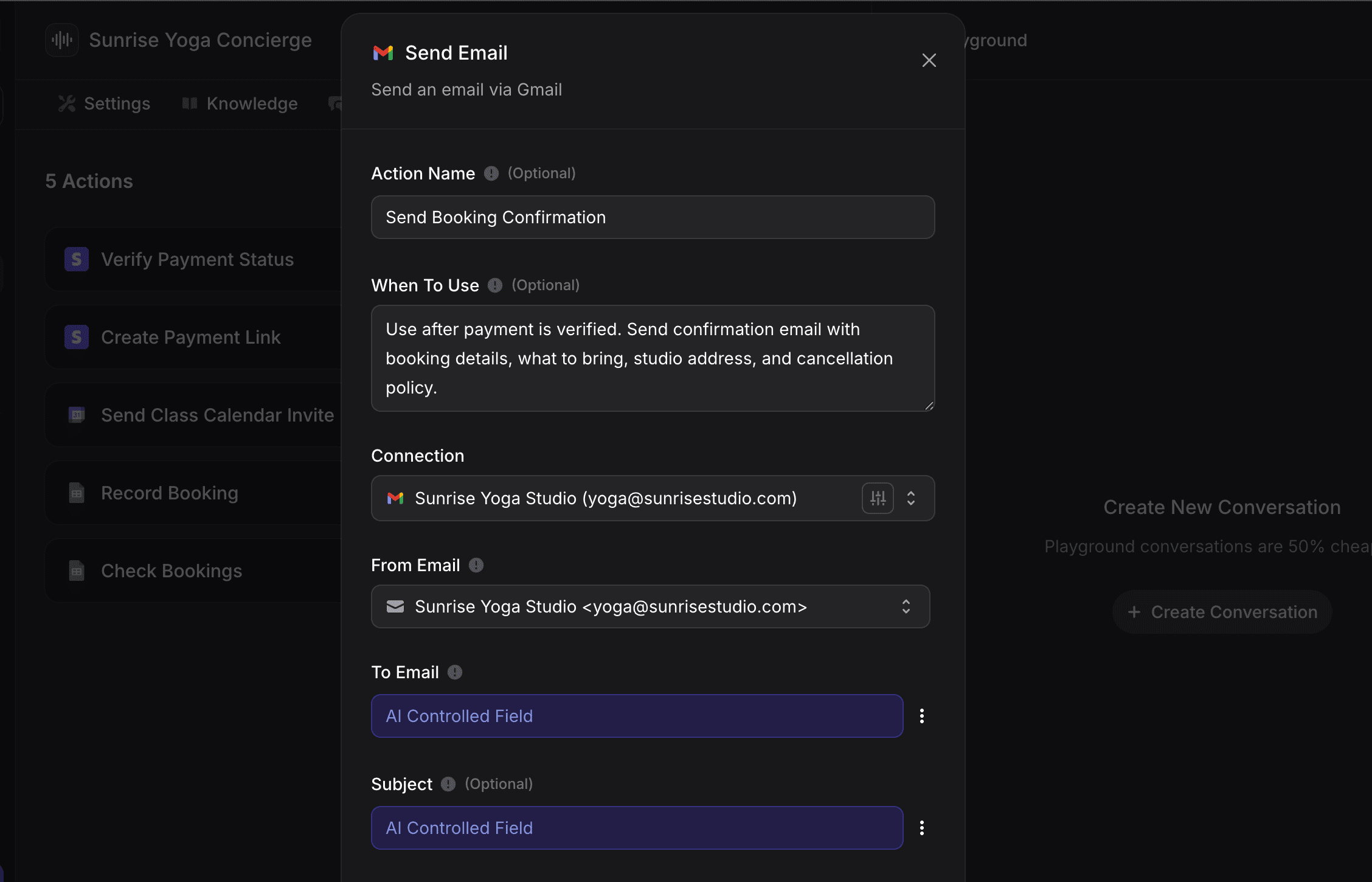
Step 5: Connect WhatsApp
Your assistant needs a channel to communicate. Click the Channels tab.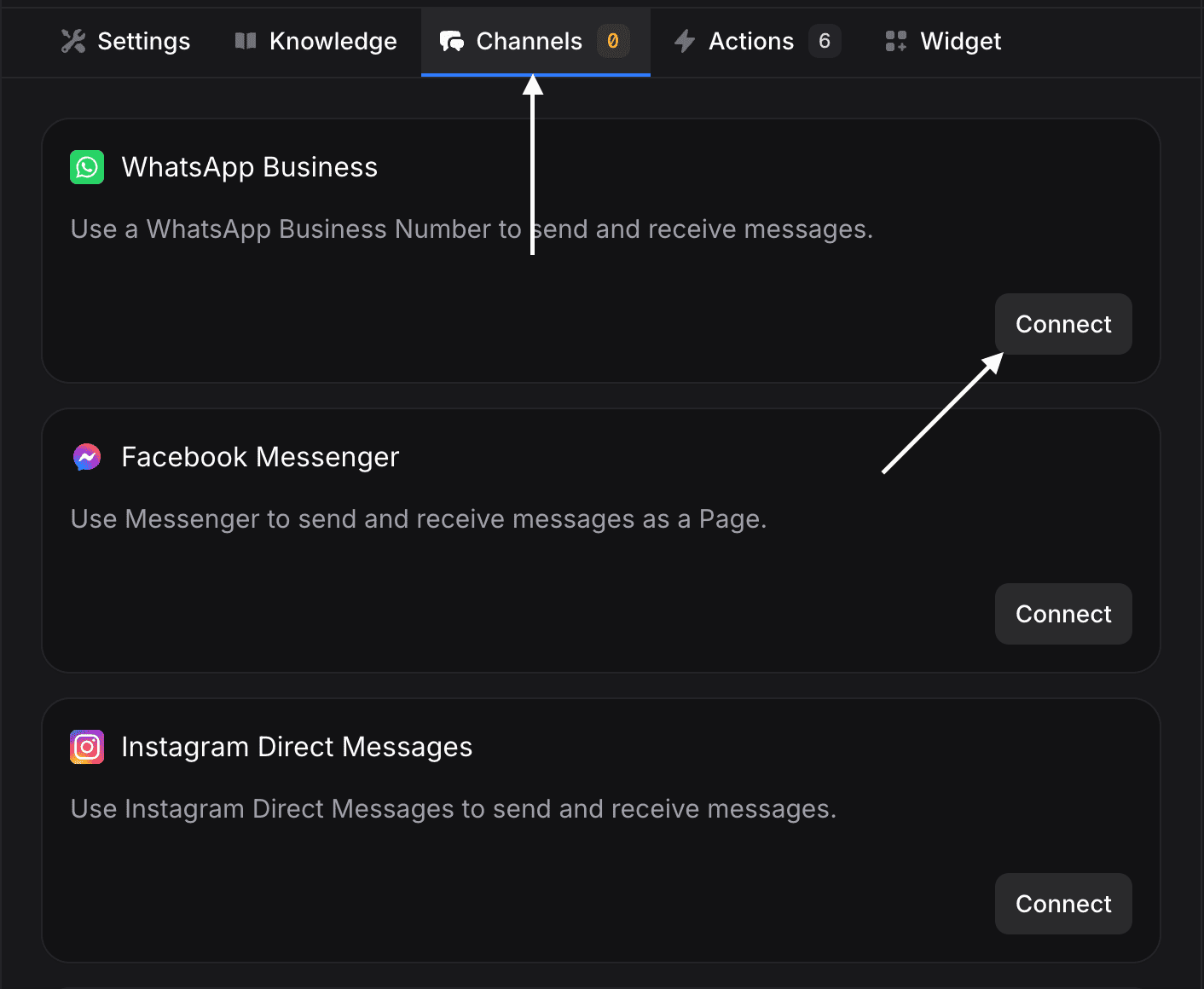
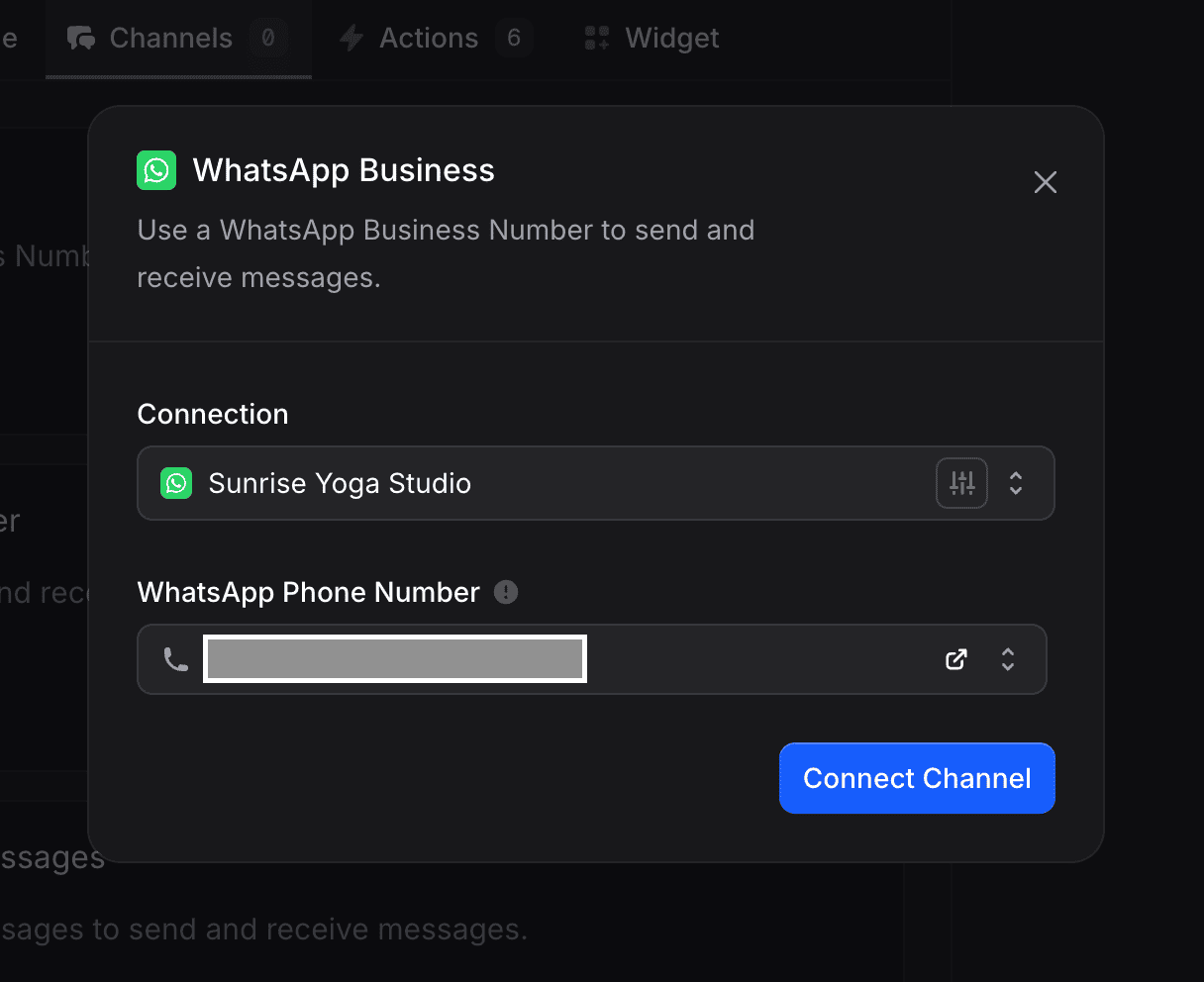
- Connect your Meta Business account
- Select or create a WhatsApp Business phone number
- Verify your business
- Configure message templates (optional)
Step 6: Test in the Playground
Before going live, test everything. On the right side of the assistant page, you’ll see the Test Assistant panel. Click Create Conversation and try a booking flow. Verify that actions trigger at the right moments and responses use your Knowledge correctly.Step 7: Go Live
Once testing is complete:- Enable the WhatsApp channel using the toggle
- Share your WhatsApp number with customers
- Monitor the Inbox for conversations
See It in Action
Here’s what a real customer journey looks like. This shows Knowledge, Actions, and Memory working together across multiple conversations.First Booking (Saturday evening)
Sarah: Hi! I saw your studio on Instagram. Do you have beginner-friendly classes?
Assistant: Hi! Yes, we have several options perfect for beginners. Our Gentle Stretch class on Saturdays at 9 AM is ideal. It’s a slow, relaxing practice focused on flexibility, taught by Linda who specializes in working with newcomers. Morning Flow (Mon/Wed/Fri at 7 AM) is also suitable for all levels. Would you like to know more about either?
Sarah: The Saturday one sounds good. How much is it?
Assistant: Great choice! We have three package options:For your first class, we also offer 50% off! Would you like to book this Saturday’s Gentle Stretch?
- Drop-In: $25 for a single class (perfect for trying us out)
- Starter Pack: $90 for 5 classes (valid 30 days)
- Unlimited: $150/month for unlimited classes
Sarah: Yes! I’ll do the drop-in. My name is Sarah, email is sarah.miller@email.com
Assistant: Perfect, Sarah! Let me check availability for this Saturday’s Gentle Stretch at 9 AM.
Good news, there are spots available! With the first-timer discount, your Drop-In is $12.50. Here’s your payment link:
https://pay.stripe.com/abc123
Once you’ve completed payment, I’ll send your confirmation and calendar invite.
Sarah: Done!
Assistant: Payment confirmed! You’re all set for Gentle Stretch this Saturday at 9 AM.
I’ve sent a calendar invite and confirmation email to sarah.miller@email.com. A few things to know:
- Arrive 10 minutes early to settle in
- Yoga mats available to rent for $3, or bring your own
- We’re at 123 Wellness Way, Downtown (free parking in the building garage)
See you Saturday, Sarah!What happened: The assistant answered using Knowledge, checked real-time availability, processed payment, verified it, recorded the booking, sent a calendar invite, and emailed confirmation. All automatically.
Returning Customer (Two weeks later)
Sarah: Hey!
Assistant: Hi Sarah! How was Gentle Stretch with Linda? Ready to book another class?
Sarah: It was great! Linda was so patient. I want to come regularly now. What’s the best deal?
Assistant: So glad you enjoyed it! For regular attendance, the Unlimited plan at 150 usd/month is the best value. You can attend as many classes as you want. If you’re not sure about committing monthly, the Starter Pack gives you 5 classes for $90, valid for 30 days.
Based on Gentle Stretch being Saturdays only, the Starter Pack would cover 4-5 weeks of classes. But if you want to add Morning Flow or try Power Yoga too, Unlimited pays for itself at just 6 classes per month.
Sarah: Let’s do the starter pack for now
Assistant: Great choice! Here’s your payment link for the Starter Pack, 5 classes for $90:
https://pay.stripe.com/xyz789
Sarah: Paid! And can you book me for this Saturday?
Assistant: Perfect! Your Starter Pack is active. 5 classes valid through February 10th.
This Saturday’s Gentle Stretch at 9 AM has space. I’ve booked you in!
Calendar invite sent. 4 classes remaining on your Starter Pack. See you Saturday, Sarah!What happened: The assistant remembered Sarah’s name, her previous class, and her instructor preference. It gave personalized package advice based on her attendance pattern.
Key Concepts
FAQ
What if a class is full?
What if a class is full?
The assistant counts 15 bookings in the spreadsheet (matching max capacity from Knowledge) and tells the customer the class is full. Your instructions tell it to suggest alternatives.
Can I change prices?
Can I change prices?
Update prices in your Knowledge text. The assistant reads Knowledge fresh for each conversation.
What if someone wants a refund?
What if someone wants a refund?
Your Knowledge states the refund policy. For exceptions, AI Routing hands complex requests to your team.
How do I add a new class?
How do I add a new class?
Update your Knowledge with the new class details (name, time, instructor, max capacity). The assistant picks up changes immediately.
What if payment verification fails?
What if payment verification fails?
If the checkout hasn’t been paid, the assistant will let the customer know and can send a new checkout link or help troubleshoot.
Bonus: Adding Rescheduling
Want to let customers reschedule their bookings? Add two more actions: Google Calendar → Update Event- Action Name: “Reschedule Class”
- When To Use: “Use when a customer wants to reschedule an existing booking to a new date/time.”
- Action Name: “Update Booking Record”
- When To Use: “Use after rescheduling to update the booking date in the spreadsheet.”
Sarah: Hey, something came up Saturday. Can I reschedule?
Assistant: Hi Sarah! Of course. Your Gentle Stretch is this Saturday at 9 AM. When would you like to move it to?
Sarah: Next Saturday
Assistant: Done! I’ve moved your booking to next Saturday, January 18th at 9 AM. Your calendar invite is updated. See you then!