

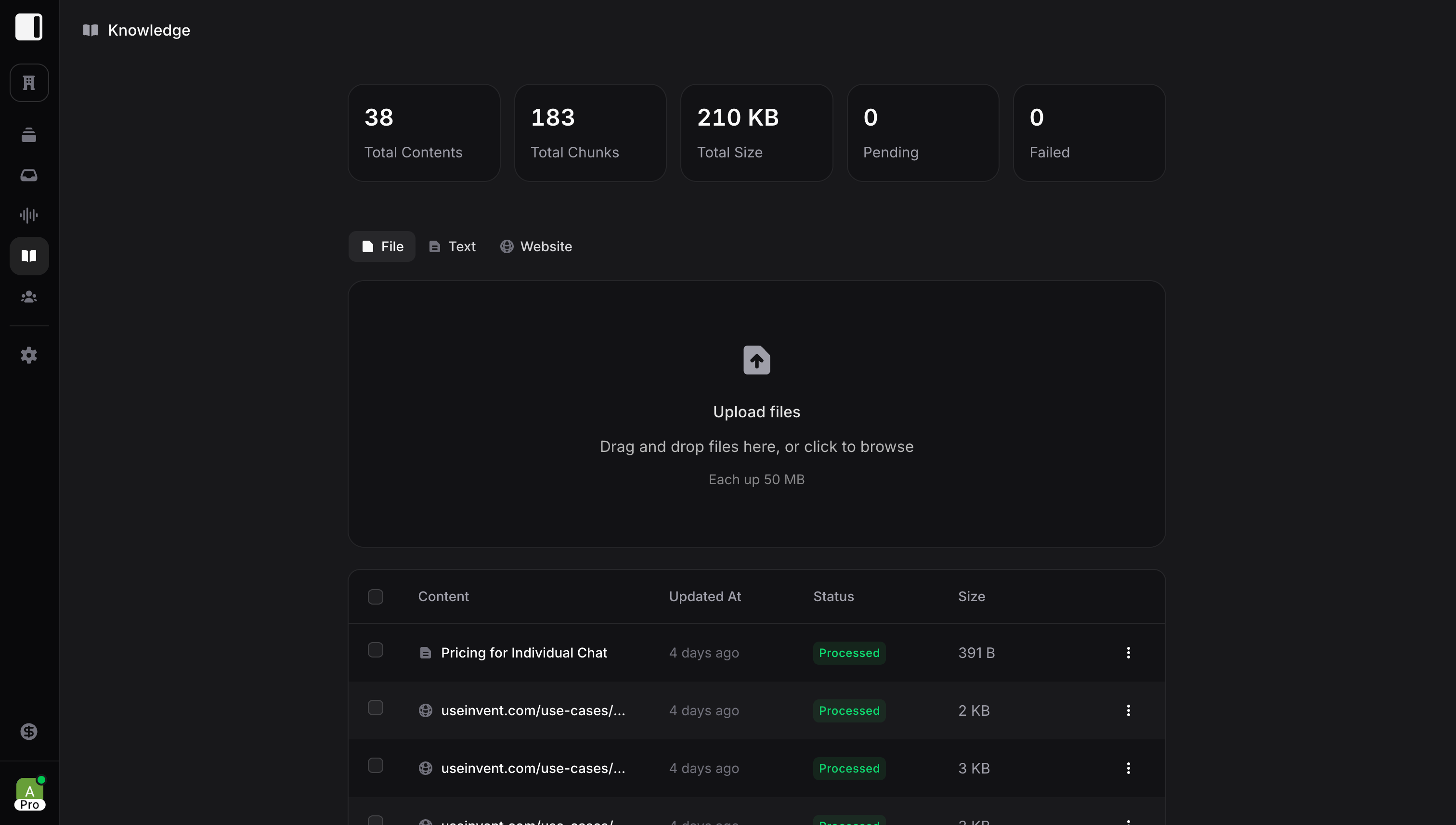
Knowledge Types
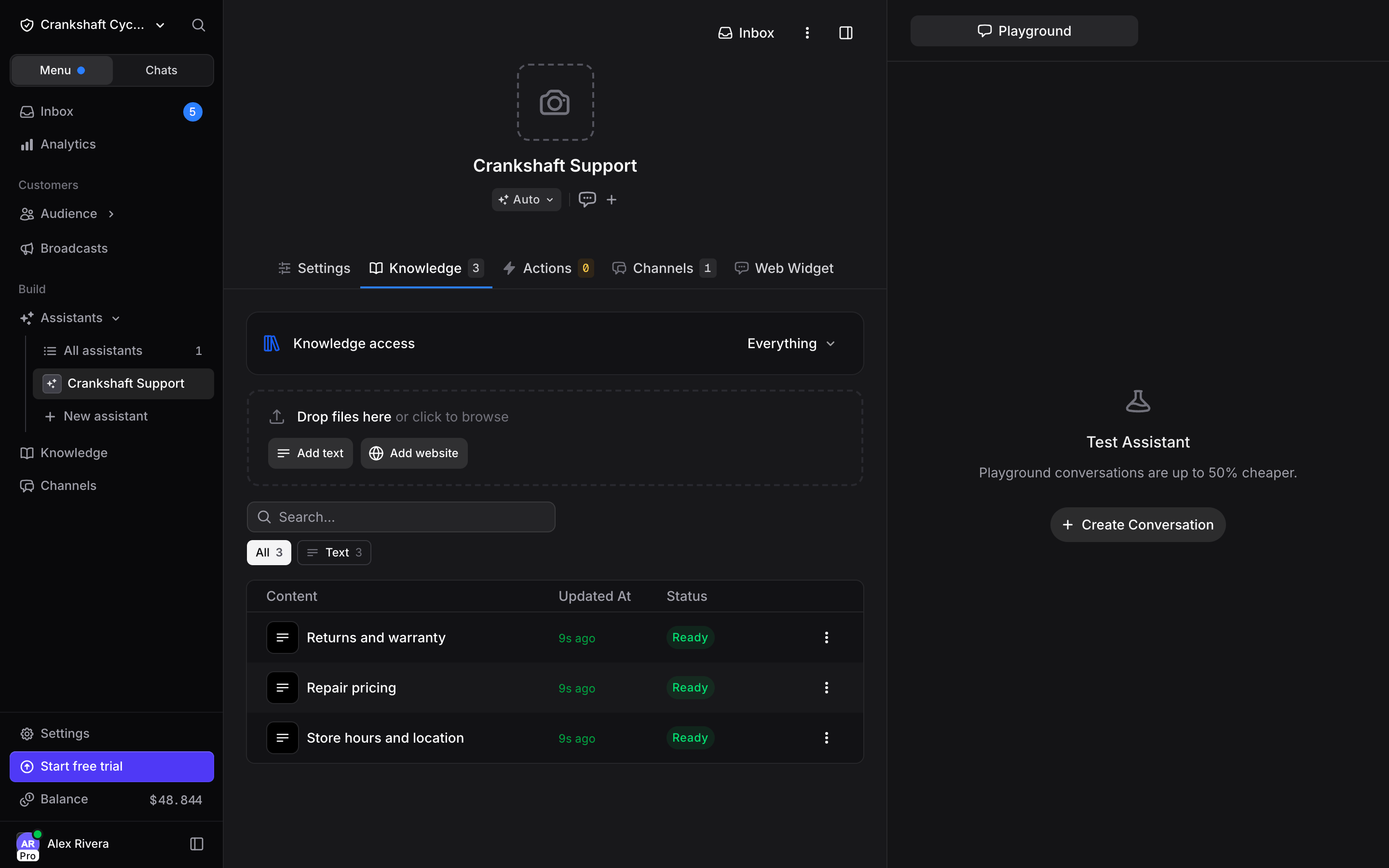
You can add three types of knowledge. Click Add knowledge at the top of the Knowledge page to open a dialog with three tabs: File, Text, and Website. The strip above your list offers the same three: Drop files here or click to browse uploads files straight away, and Add text and Add website open the dialog on that tab. An empty library shows the same three options as tiles instead.Files
Upload documents directly from your computer. Drag and drop files into the upload area, or click to browse.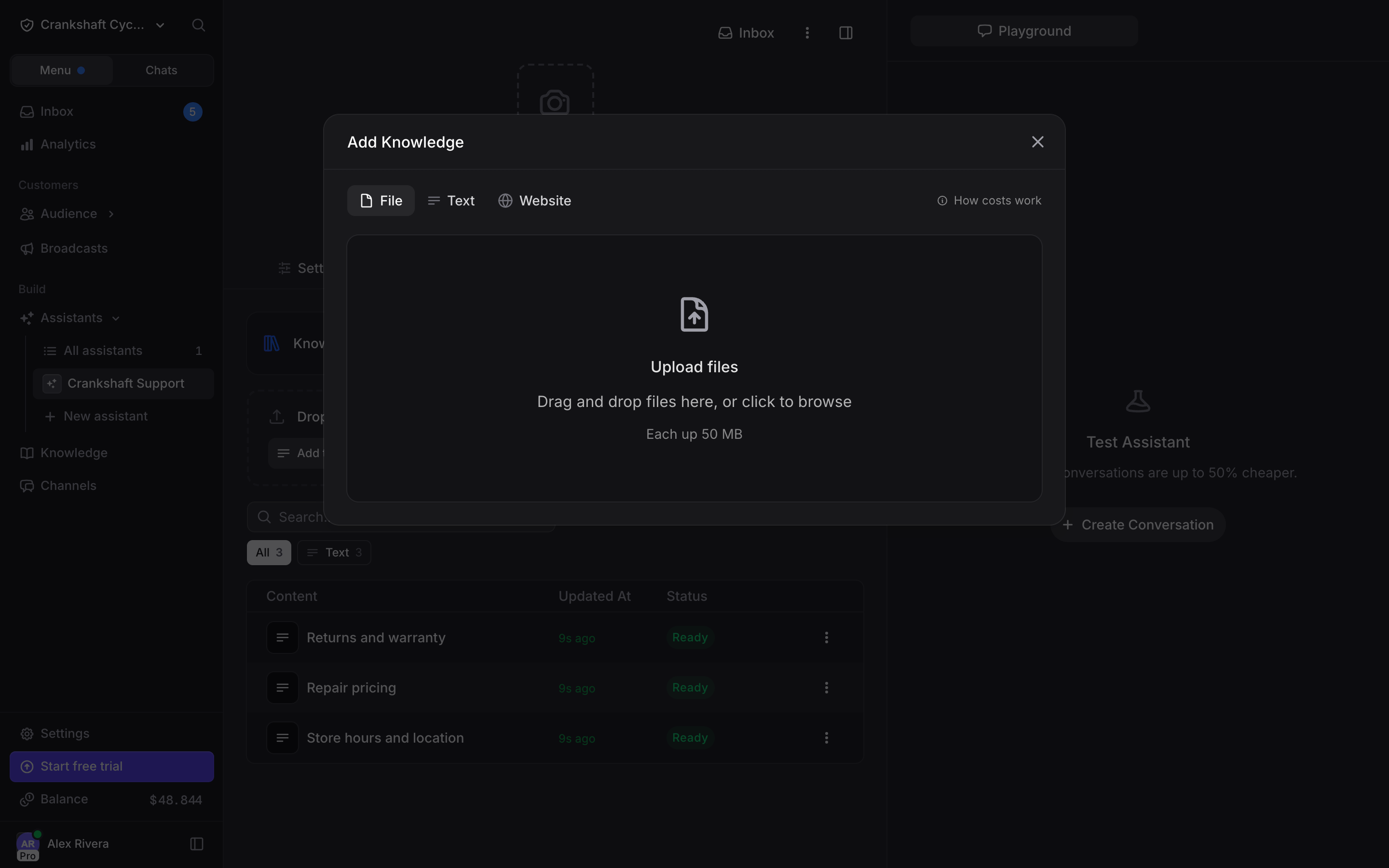
- PDF documents (.pdf)
- Word documents (.doc, .docx)
- Spreadsheets (.xlsx)
- Text files (.txt)
- Markdown files (.md)
- Images (.png, .jpg, .jpeg, .webp)
Text
Add content directly with a title and body. This is the fastest way to give your assistant specific information that does not exist in a document or on your website.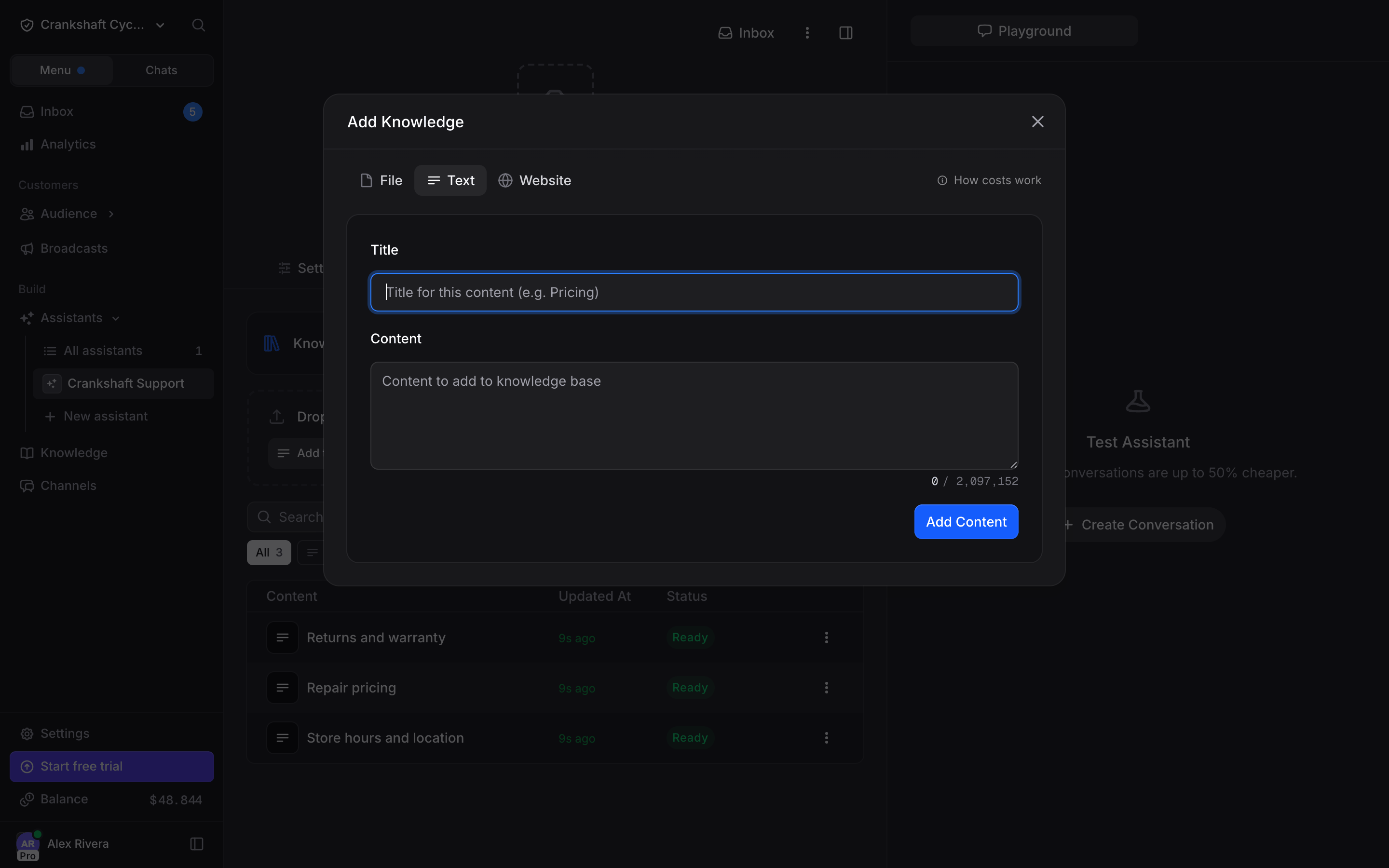
- Title: A descriptive name for this content (e.g., “Pricing”, “Return Policy”, “Class Schedule”). The title helps you organize your knowledge and helps the assistant identify relevant content
- Content: The actual information you want the assistant to know. Supports up to 2,097,152 characters per item
- FAQs and Q&A pairs
- Pricing and plan details
- Policy snippets
- Product descriptions
- Promotional offers or seasonal information
- Any information that does not exist in a document or on your website
Website
Connect websites and web pages by URL. Invent extracts the content automatically so your assistant can answer questions based on your published content.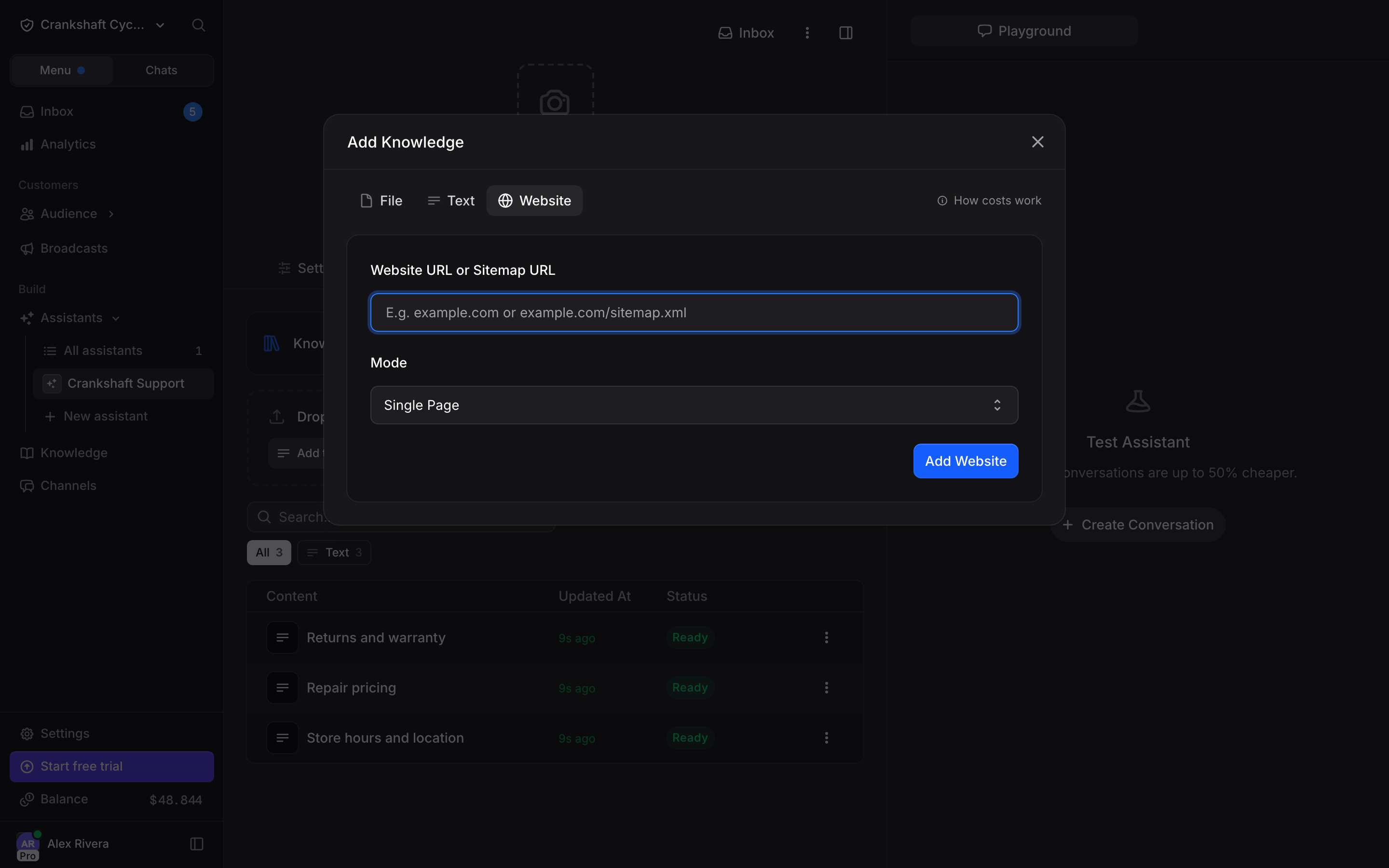
example.com or example.com/sitemap.xml) and select a Mode:
- Single Page: Indexes only the specific URL you provide. Use this for individual pages like a pricing page or FAQ
- Crawl Pages: Follows links from the starting URL to discover and index multiple pages across your site. Use this for help centers, documentation sites, or entire sections of your website
/blog*), and Skip these paths leaves out the paths you list (e.g., /admin*).
Click Add Website to start indexing. Your content appears in the table below with its status, last updated time, and size.
Works well for:
- Help center articles and documentation
- Product and pricing pages
- Blog posts and announcements
- Any publicly accessible web content
Cost
Knowledge comes with a small usage cost that scales with how much you upload and how often your assistant uses it. Most organizations find this cost very low, but we want to be upfront about it so you can plan with confidence. Knowledge is billed in two places:- At upload, $0.0005 per chunk (one-time). When you add a file, text, or website, Invent splits it into smaller chunks and indexes each one so it can be searched. A chunk is roughly 350–400 words (about half a page of typical text). Each chunk costs $0.0005 to index, charged once at upload. The Total Chunks stat on the Knowledge page tells you exactly how many chunks your content produced, so you can always see what you have paid for.
- At query time, $0.0005 per search. Each Knowledge Base Search your assistant runs costs a flat $0.0005, regardless of how much content is in your knowledge base. Retrieved chunks are then included as context in the message and count toward its normal input-token cost.
Example upload costs
Example query costs
Repeated identical questions within 2 hours are cached across your whole organization and do not re-charge.
In practice:
- Larger documents produce more chunks, and therefore a slightly higher one-time upload cost and more content to search through.
- Repeated searches are cached for free. When the same question is asked more than once, Invent reuses the previous search result for up to 2 hours across your entire organization, so you are not billed for the repeat. Only new or different questions trigger a fresh search.
- Knowledge Base Searches use up to 20% less tokens thanks to ongoing optimizations, so each search is already quite efficient.
Knowledge Statistics
The Knowledge page shows you exactly what your assistant knows:- Total Contents: Number of knowledge items you’ve added
- Total Chunks: How the content is split for processing (more chunks = more detailed knowledge)
- Total Size: Combined size of all your knowledge
- Pending: Items still being processed
- Failed: Items that couldn’t be processed (check these for issues)
Processing Status
After uploading, each item goes through processing:- Pending: Upload received, waiting to process
- Processing: Content is being analyzed and indexed
- Processed: Ready for your assistant to use
- Failed: Something went wrong (usually format issues)
Knowledge Scope
There is one Knowledge library for your whole organization. Each assistant decides how much of it to read from the Knowledge access row at the top of its Knowledge tab:- Everything: The whole knowledge base, including content you add later. This is the default
- Selected content: Only the items you pick. Click From Knowledge to choose them from the library. Remove in an item’s menu takes it off this assistant’s list without deleting it from Knowledge
Best Practices
- Keep content focused: Smaller, specific documents work better than massive files
- Keep knowledge up to date: Open a text or file item and use its Editor tab to change the content in place. It is re-indexed when you save. A document too large to edit there is replaced by uploading a new version. To refresh a website, click Re-crawl in the item’s header, or Re-Index in its three-dot menu
- Use clear language: Write as if explaining to a new employee
- Test your assistant: After adding knowledge, ask questions to verify it works