

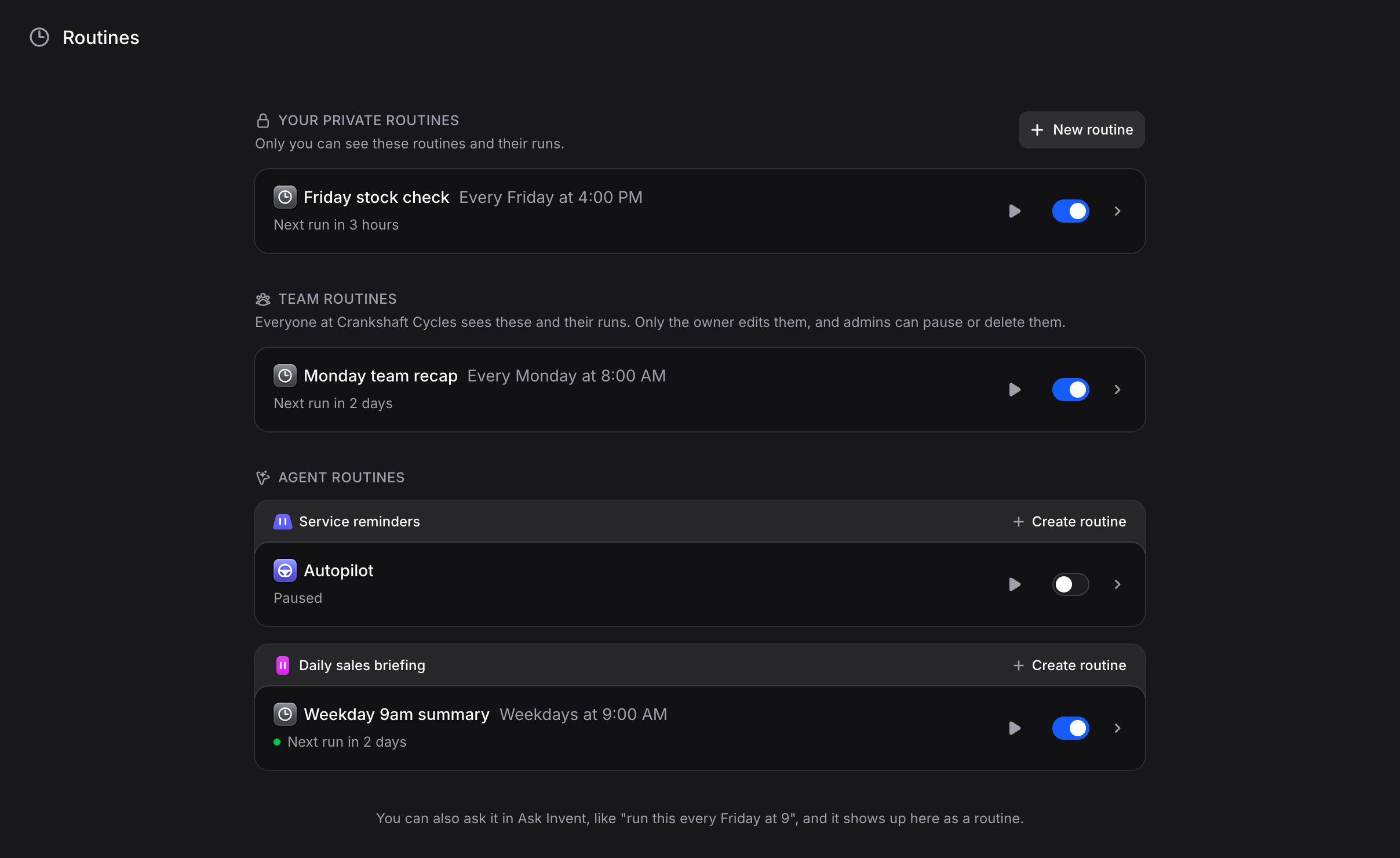
Kinds of routines
Add a routine
1
Open the agent's Routines tab
Go to Agents, open your agent and click Routines. Make sure the agent has instructions first: every run follows them.
2
Pick when it runs
Turn on Autopilot or Webhook with its switch, and the routine is on. For a schedule or an event, click Add trigger and choose On a schedule or an event under From your apps.
3
Add extra instructions (optional)
For a schedule or an event, use Extra instructions for anything specific to this routine, on top of the agent’s own instructions. Leave it empty and the agent does its usual job.
4
Save
Click Create routine. The routine shows its next run, or what it is waiting for. Use the routine’s switch to turn it off and on.
Autopilot
The agent picks its own next run time at the end of each run, from 5 minutes to 30 days later. You can guide the timing in its instructions, like “check again every morning”. If a run ends without picking a time, the agent tries again a day later. After 3 misses in a row, the routine is switched off and shows Paused.On a schedule
Pick Every hour, Every day, Every weekday, Every week, Every month or Custom schedule, then the time. The time zone starts as yours and you can change it. When it differs from yours, the routine also shows the time for you. Custom schedule takes a cron expression with five parts: minute, hour, day, month and weekday. For example,0 9 * * 1 runs every Monday at 9:00.
Webhook
Turn on Webhook to get its Webhook URL, then paste it in the other app. The URL is shown only once, so copy it right away. Every request to that address starts a new run. The request can includetext with the task and files with links to up to 10 files.
Keep the URL private: anyone with it can start a run. If it leaks, click Regenerate URL. The old address stops working right away.
From your apps
Pick an event from one of your connected apps. Each event starts a run. If a routine gets more than 60 events in an hour, the extra ones are skipped. Tables, Inbox and Contacts have events of their own, with nothing to connect:
Every filter but Table starts on Any, which takes every event. Field and Changes to work on contacts as they do on records: see Routines on record changes.
Records and contacts added by an import never start a routine. Changes an agent makes never start that agent’s own routines.
Renaming what a trigger watches never breaks it. Deleting the table, field, segment or assistant it watches, or changing that field’s type while Changes to is set, makes the routine say “What this trigger watches was deleted”. Edit its trigger and pick again.
If the app you need has no event, a schedule can check it for you instead, as often as you need.
Same chat or a new chat
Autopilot, schedules and webhooks have a Chat setting:- New chat each run: every run starts an empty chat. This is the default for schedules and webhooks.
- Same chat: every run continues one chat and sees what came before. This is the default for Autopilot.
Run a routine now
Click Run now on a routine to start a run right away, whatever its schedule. Routines started by an app event can’t be run by hand. Each routine has its own page with its runs. Click a run to open it in a side panel next to the list. To delete a routine, open the ⋯ menu on its page and click Delete.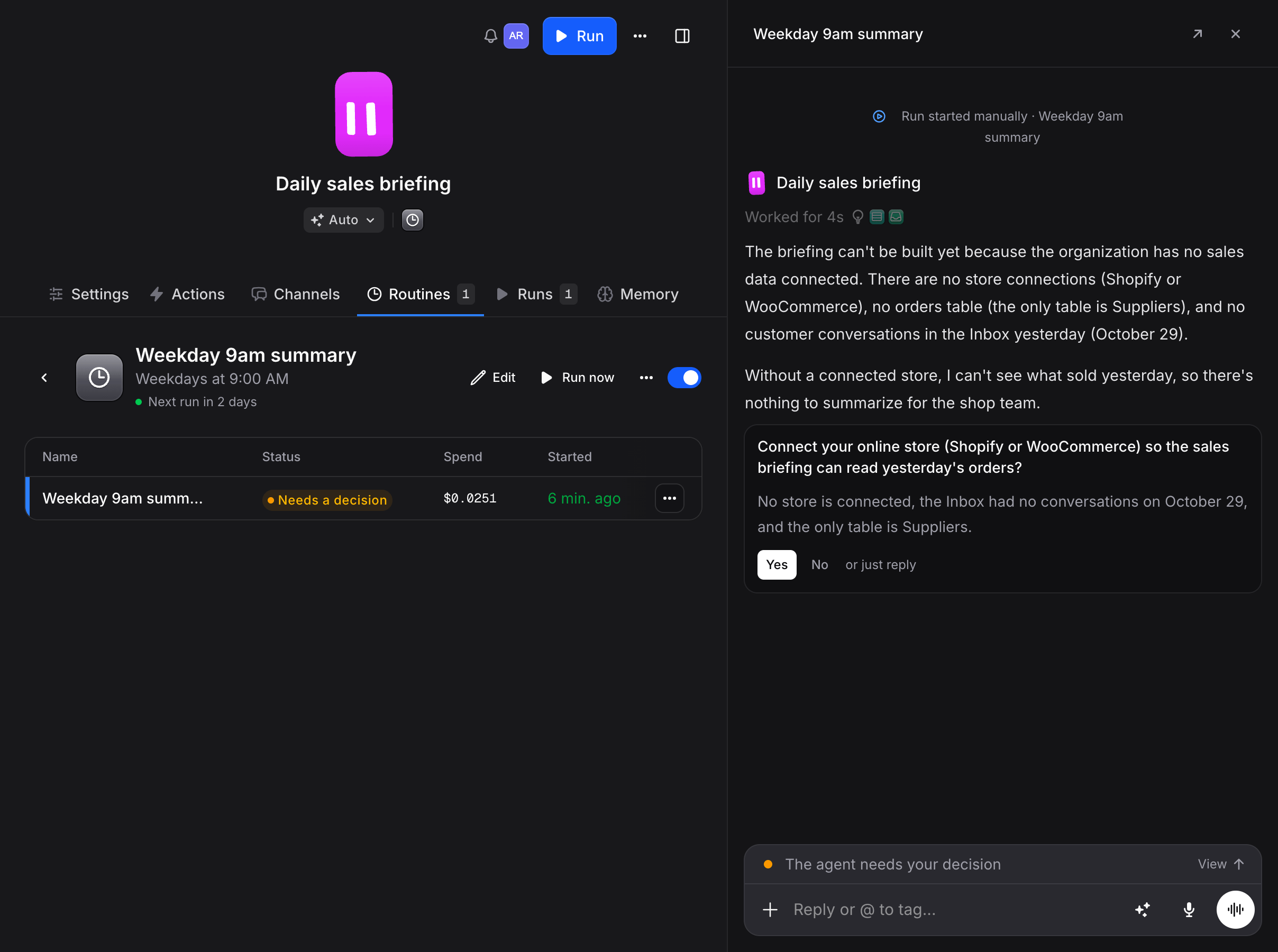
Private and Team routines
You can also set up a routine for yourself, without an agent. On the Routines page, click New routine, write what each run should do, and pick when it runs. Under Visibility, pick Only me to keep the routine and its runs to yourself, under Your private routines. Pick Everyone to share it under Team routines: everyone in your organization sees it and its runs, and only you edit it. Admins can pause or delete any member’s routine. They see other members’ private routines too, but not what they do or their runs. You can also ask for one in your organization chat, like “run this every Friday at 9”, and it shows up here as a routine. A member’s role decides who can use these routines. With Routines on View, a member sees the Routines page. With Manage, they can also create and edit their own. Without it, there is no New routine button. An agent’s routines follow the Agents permission instead. See Custom roles.FAQ
Can a routine run wait for my approval?
Can a routine run wait for my approval?
No. Routine runs never wait for approvals, since nobody is there to answer. If a run needs something only you can give, like a connection, it shows up in Tasks.
My Autopilot routine shows Paused
My Autopilot routine shows Paused
The agent ended 3 runs in a row without picking its next run time. Check that its instructions say when to run again, then turn the routine’s switch back on.
My webhook stopped working
My webhook stopped working
Someone may have regenerated the URL. Since a URL is shown only once, click Regenerate URL in the routine and paste the new one in the other app.
What happens to past runs when I delete a routine?
What happens to past runs when I delete a routine?
The routine stops right away. Past runs stay in the Runs list, but you can no longer filter them by this routine.