> ## Documentation Index
> Fetch the complete documentation index at: https://docs.useinvent.com/llms.txt
> Use this file to discover all available pages before exploring further.
# Usage & Limits
> See what your workspace spends its balance on, and the ceilings your plan applies
Three pages answer three different questions. **Settings → Usage** shows what you have spent and on what. **Settings → Spending limits** decides who may spend how much. **Settings → Limits** shows how much of each resource your plan allows.
## Usage
Open **Settings → Usage**. It is for billing managers, and the same view also sits under **Analytics → Usage**. The date range picker in the header drives every chart on the page, with presets from the last 24 hours out to the last three years, plus year to date and a custom range.
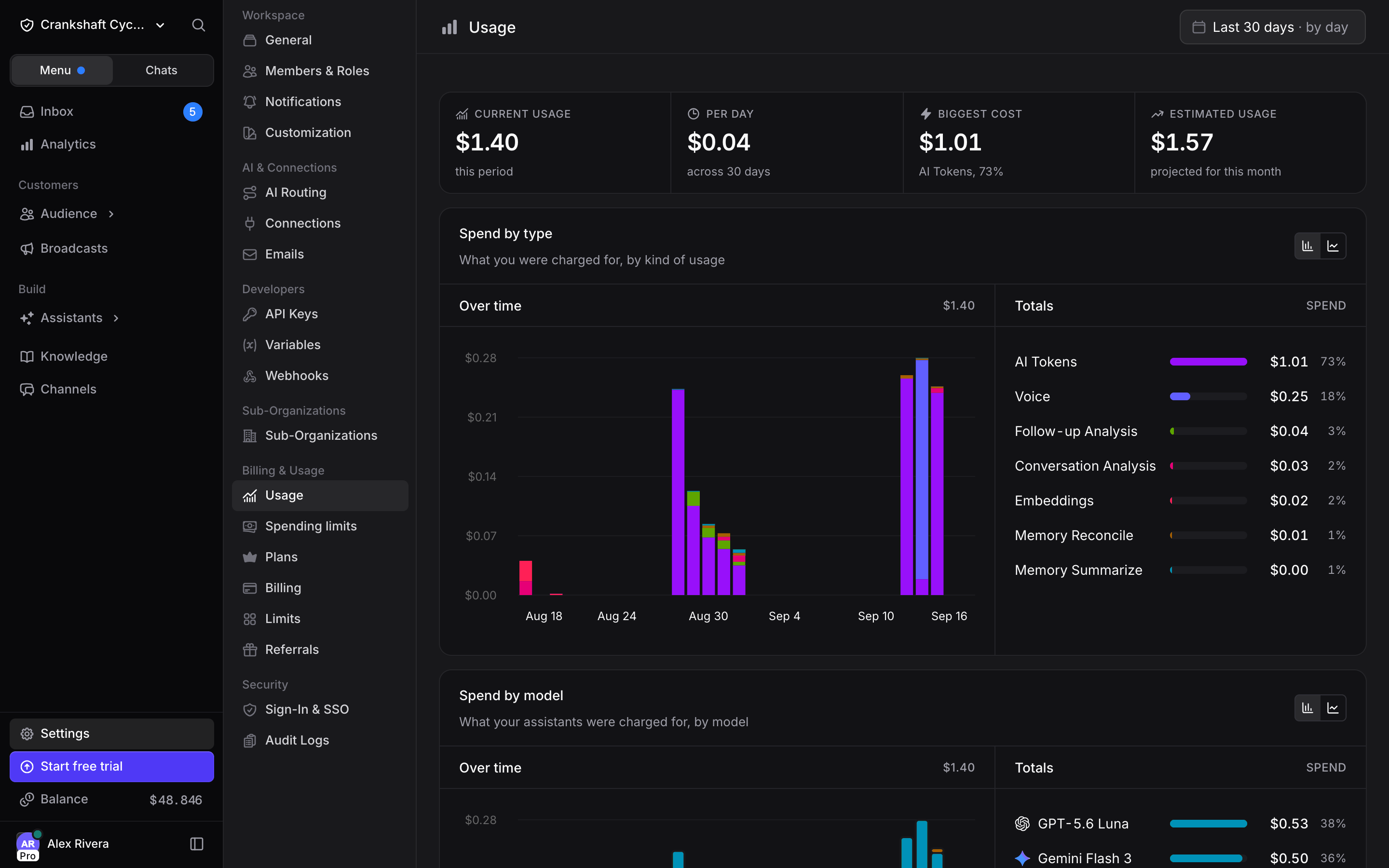 The strip at the top gives you the headline numbers for the selected range:
* **Current usage**, in dollars.
* **Per day**, the average across the days in the range.
* **Biggest cost**, the kind of usage you paid the most for, with its share of the total.
* **Estimated usage**, what this calendar month will cost if usage continues at the rate so far.
### Where the money went
**Spend by type** breaks the same range down by what produced the spend: a stacked chart over time on the left, and a total per type with its share on the right. Use the controls in the corner to switch between bar and line, show cumulative totals or shares, and export the underlying numbers as CSV.
The strip at the top gives you the headline numbers for the selected range:
* **Current usage**, in dollars.
* **Per day**, the average across the days in the range.
* **Biggest cost**, the kind of usage you paid the most for, with its share of the total.
* **Estimated usage**, what this calendar month will cost if usage continues at the rate so far.
### Where the money went
**Spend by type** breaks the same range down by what produced the spend: a stacked chart over time on the left, and a total per type with its share on the right. Use the controls in the corner to switch between bar and line, show cumulative totals or shares, and export the underlying numbers as CSV.
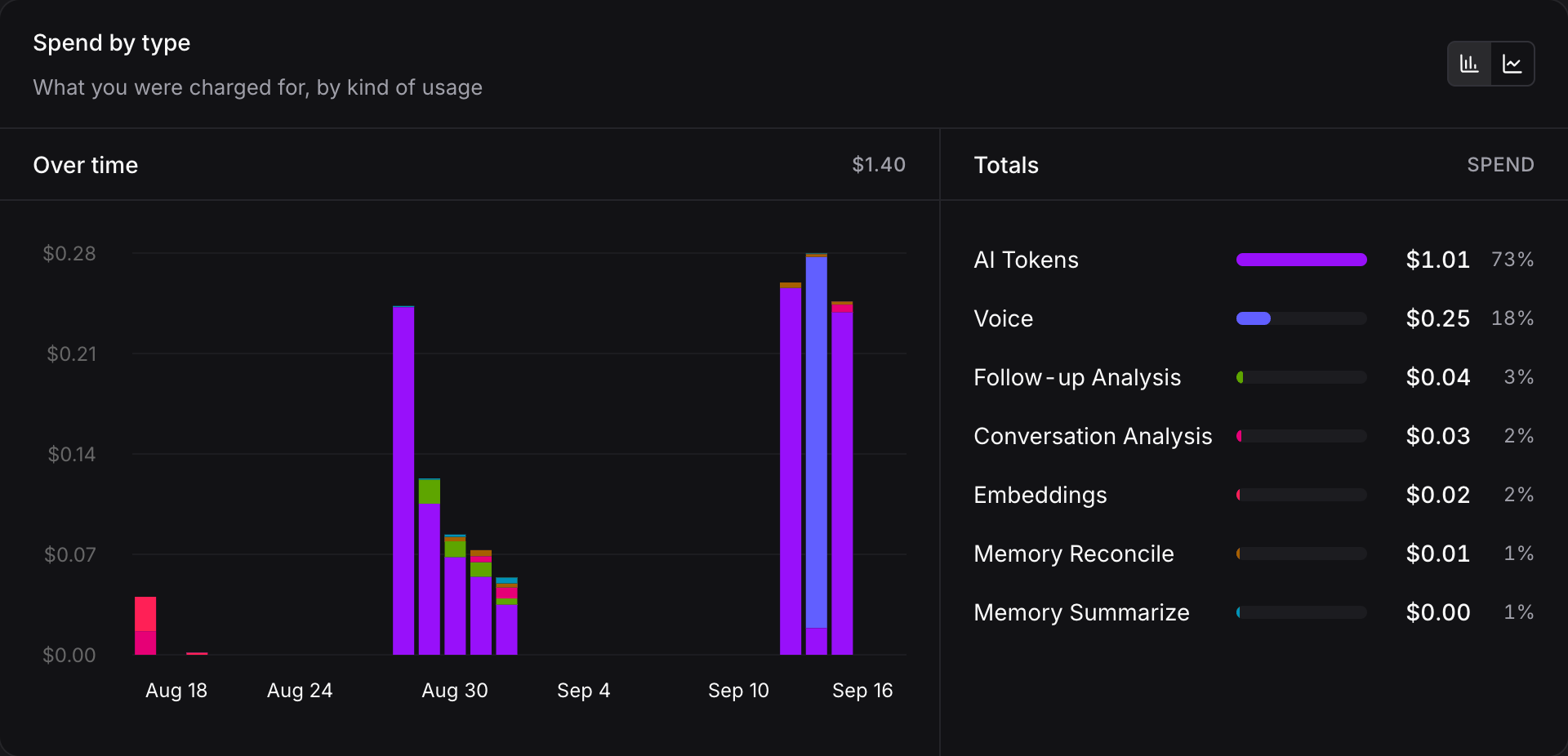 | Event type | What it covers |
| :- | :- |
| **AI Tokens** | Assistant replies and everything else the model generates |
| **Speech-to-Text** | Voice notes and videos transcribed |
| **Embeddings** | Indexing and searching your knowledge base |
| **Conversation Analysis**, **Follow-up Analysis** | Automatic analysis of conversations and follow-up decisions |
| **Memory Reconcile**, **Memory Summarize** | Keeping contact memory up to date |
| **Broadcast Email / SMS / WhatsApp** | Per-message fees for broadcasts, split by marketing and transactional |
| **Workflow Run** | Workflow executions |
**Spend by model** does the same split by AI model, so you can see what switching a model would change.
**Spend by member** and **Spend by assistant** show who the AI spend went to: what each member spent in their chats, and what each assistant spent replying to customers.
The **Budget** card at the bottom puts the spend next to its ceilings: your available balance with the auto-recharge status, and how much of the organization's spending cap is used, or **No cap** when none is set.
Spot a category you did not expect? Compare two ranges before changing anything. A single busy day can dominate a 7-day view and disappear in a 30-day one.
## Spending limits
Open **Settings → Spending limits** (billing managers only) to decide who may spend how much each month. The page starts with the organization limit, the same one Billing shows, then a **Members** card and an **Assistants** card. Each row shows what it spent this month.
| Event type | What it covers |
| :- | :- |
| **AI Tokens** | Assistant replies and everything else the model generates |
| **Speech-to-Text** | Voice notes and videos transcribed |
| **Embeddings** | Indexing and searching your knowledge base |
| **Conversation Analysis**, **Follow-up Analysis** | Automatic analysis of conversations and follow-up decisions |
| **Memory Reconcile**, **Memory Summarize** | Keeping contact memory up to date |
| **Broadcast Email / SMS / WhatsApp** | Per-message fees for broadcasts, split by marketing and transactional |
| **Workflow Run** | Workflow executions |
**Spend by model** does the same split by AI model, so you can see what switching a model would change.
**Spend by member** and **Spend by assistant** show who the AI spend went to: what each member spent in their chats, and what each assistant spent replying to customers.
The **Budget** card at the bottom puts the spend next to its ceilings: your available balance with the auto-recharge status, and how much of the organization's spending cap is used, or **No cap** when none is set.
Spot a category you did not expect? Compare two ranges before changing anything. A single busy day can dominate a 7-day view and disappear in a 30-day one.
## Spending limits
Open **Settings → Spending limits** (billing managers only) to decide who may spend how much each month. The page starts with the organization limit, the same one Billing shows, then a **Members** card and an **Assistants** card. Each row shows what it spent this month.
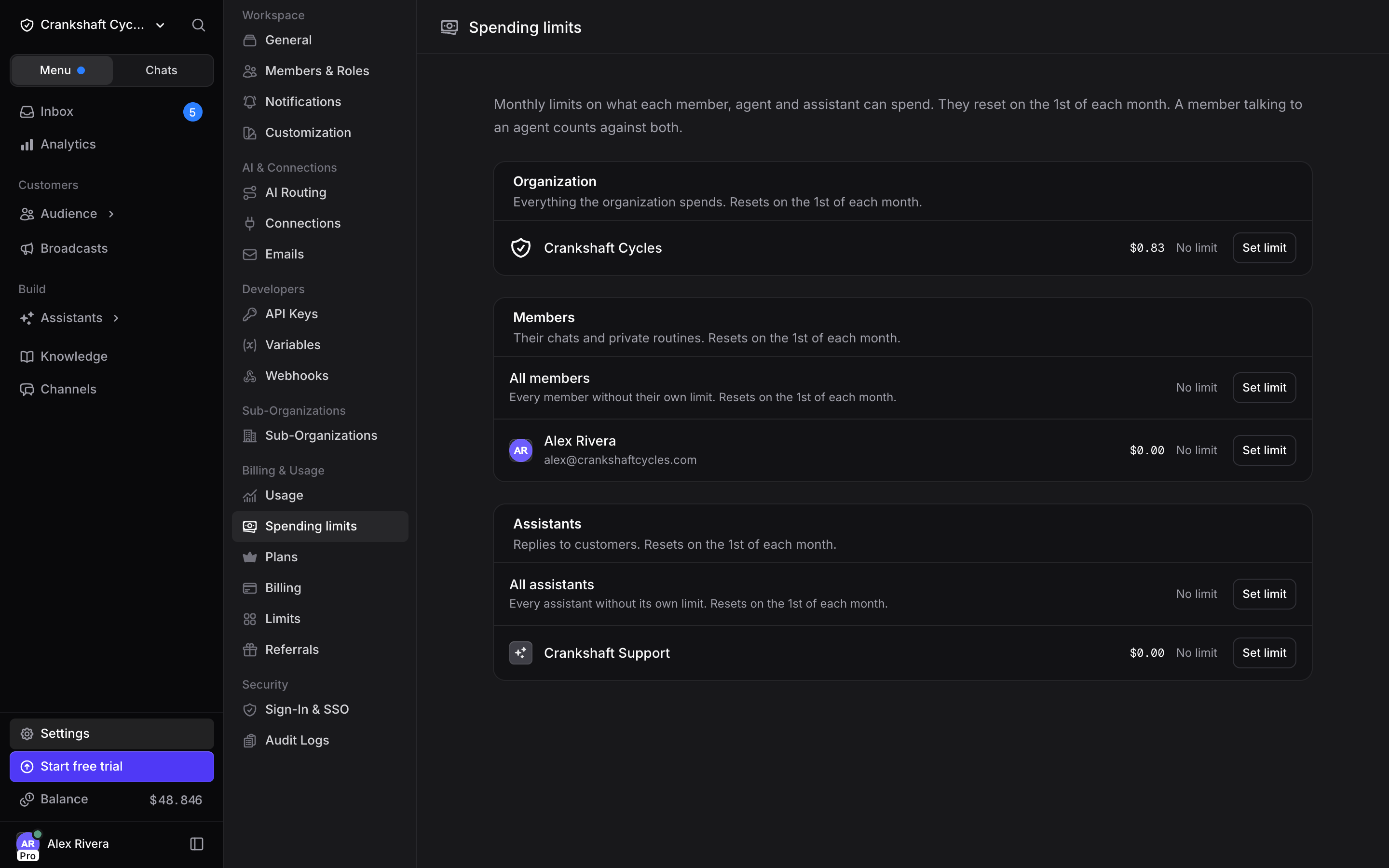 * **Organization**: everything the organization spends.
* **Members**: what each member spends in their chats.
* **Assistants**: what each assistant spends replying to customers.
The first row of each card, **All members** or **All assistants**, is the default: every row without its own limit follows it and shows a **Default** tag. **Set own limit** gives a row its own amount; removing it puts the row back on the default. Limits are per head, not pooled, and every counter resets on the 1st of each month.
When a limit is reached, a member's new messages are rejected until it is raised, an assistant stops replying to customers, and billing managers get an email. The full walkthrough, button by button, is in [Pricing and Plans](/guides/pricing-and-plans#limits-per-member-and-assistant).
## Limits
Open **Settings → Limits** for the ceilings that come with your current plan.
* **Organization**: everything the organization spends.
* **Members**: what each member spends in their chats.
* **Assistants**: what each assistant spends replying to customers.
The first row of each card, **All members** or **All assistants**, is the default: every row without its own limit follows it and shows a **Default** tag. **Set own limit** gives a row its own amount; removing it puts the row back on the default. Limits are per head, not pooled, and every counter resets on the 1st of each month.
When a limit is reached, a member's new messages are rejected until it is raised, an assistant stops replying to customers, and billing managers get an email. The full walkthrough, button by button, is in [Pricing and Plans](/guides/pricing-and-plans#limits-per-member-and-assistant).
## Limits
Open **Settings → Limits** for the ceilings that come with your current plan.
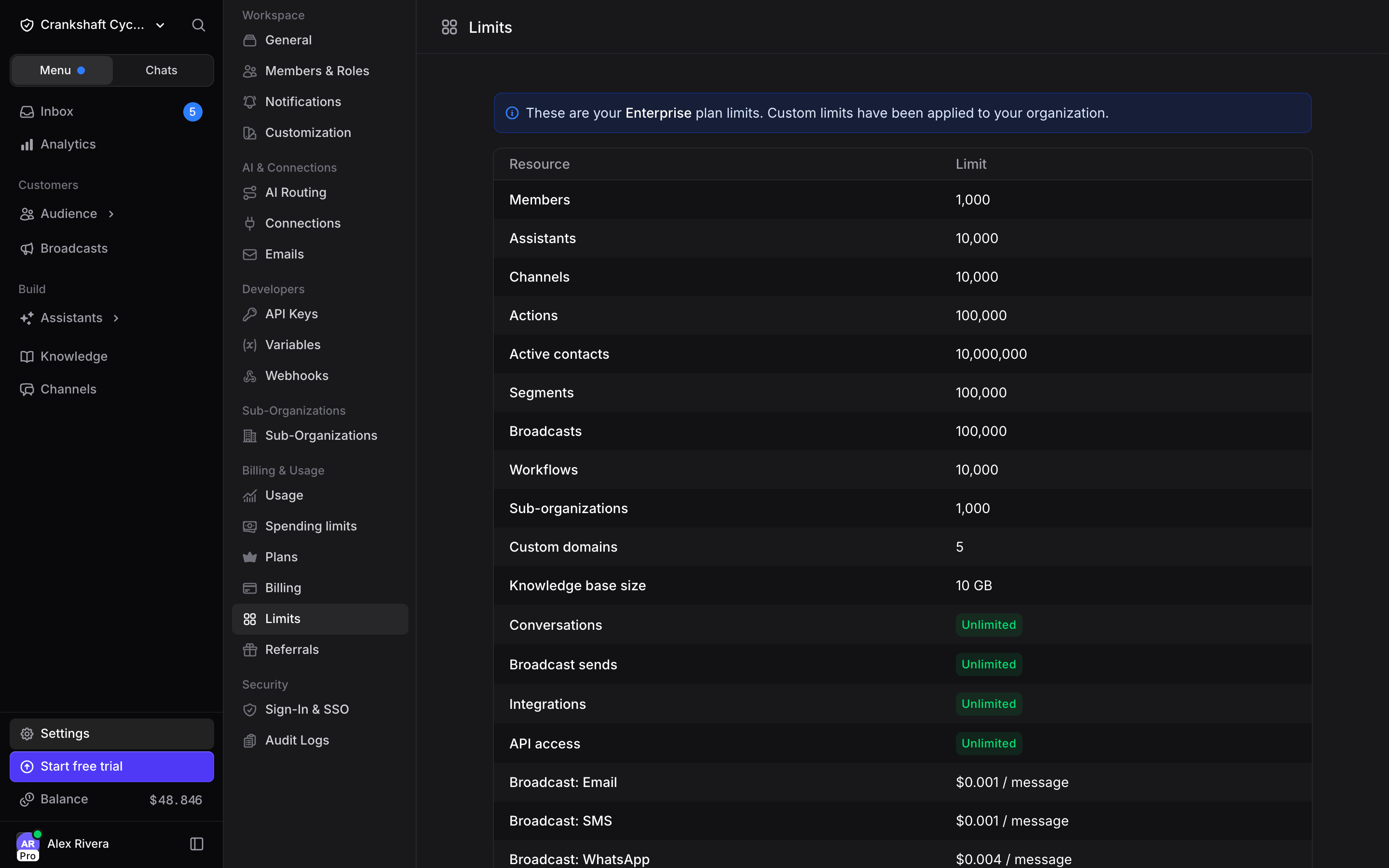 The table covers how many members, assistants, channels, actions, active contacts, segments, broadcasts, workflows, sub-organizations and custom domains your workspace can have, plus the size of your knowledge base.
Some rows are not capped at all. Conversations, broadcast sends, integrations and API access are **unlimited** on every plan: you are billed for what you use rather than blocked at a ceiling. The last rows show the per-message fee for each broadcast channel, which is the usage side of the same page.
Limits follow your plan, so upgrading raises them immediately. If your workspace needs more than the listed ceilings, the banner at the top of the page points to Enterprise, where limits are set per workspace.
Every sub-organization gets its own limits, so a busy client workspace never consumes another one's headroom.
## Keeping spend predictable
Usage and limits are only half the picture. The controls that actually cap what you can spend live in billing:
* A **monthly spending limit** pauses billable operations once the organization's cap is reached.
* **Per-member and per-assistant limits** on [Spending limits](#spending-limits) stop one member or one assistant without pausing everyone else.
* **Auto-recharge** tops the balance up when it dips below a threshold, so sends do not stall.
The monthly limit and auto-recharge are covered in [Pricing and Plans](/guides/pricing-and-plans#billing-management).
## Next Steps
Rates, plans, spending limits and auto-recharge
Track usage and caps per client or team
This documentation is built and hosted on [Mintlify](https://mintlify.com), a developer documentation platform.
The table covers how many members, assistants, channels, actions, active contacts, segments, broadcasts, workflows, sub-organizations and custom domains your workspace can have, plus the size of your knowledge base.
Some rows are not capped at all. Conversations, broadcast sends, integrations and API access are **unlimited** on every plan: you are billed for what you use rather than blocked at a ceiling. The last rows show the per-message fee for each broadcast channel, which is the usage side of the same page.
Limits follow your plan, so upgrading raises them immediately. If your workspace needs more than the listed ceilings, the banner at the top of the page points to Enterprise, where limits are set per workspace.
Every sub-organization gets its own limits, so a busy client workspace never consumes another one's headroom.
## Keeping spend predictable
Usage and limits are only half the picture. The controls that actually cap what you can spend live in billing:
* A **monthly spending limit** pauses billable operations once the organization's cap is reached.
* **Per-member and per-assistant limits** on [Spending limits](#spending-limits) stop one member or one assistant without pausing everyone else.
* **Auto-recharge** tops the balance up when it dips below a threshold, so sends do not stall.
The monthly limit and auto-recharge are covered in [Pricing and Plans](/guides/pricing-and-plans#billing-management).
## Next Steps
Rates, plans, spending limits and auto-recharge
Track usage and caps per client or team
This documentation is built and hosted on [Mintlify](https://mintlify.com), a developer documentation platform.