> ## Documentation Index
> Fetch the complete documentation index at: https://docs.useinvent.com/llms.txt
> Use this file to discover all available pages before exploring further.

# Transactional Broadcasts

> Trigger a single message through the API the moment an event happens

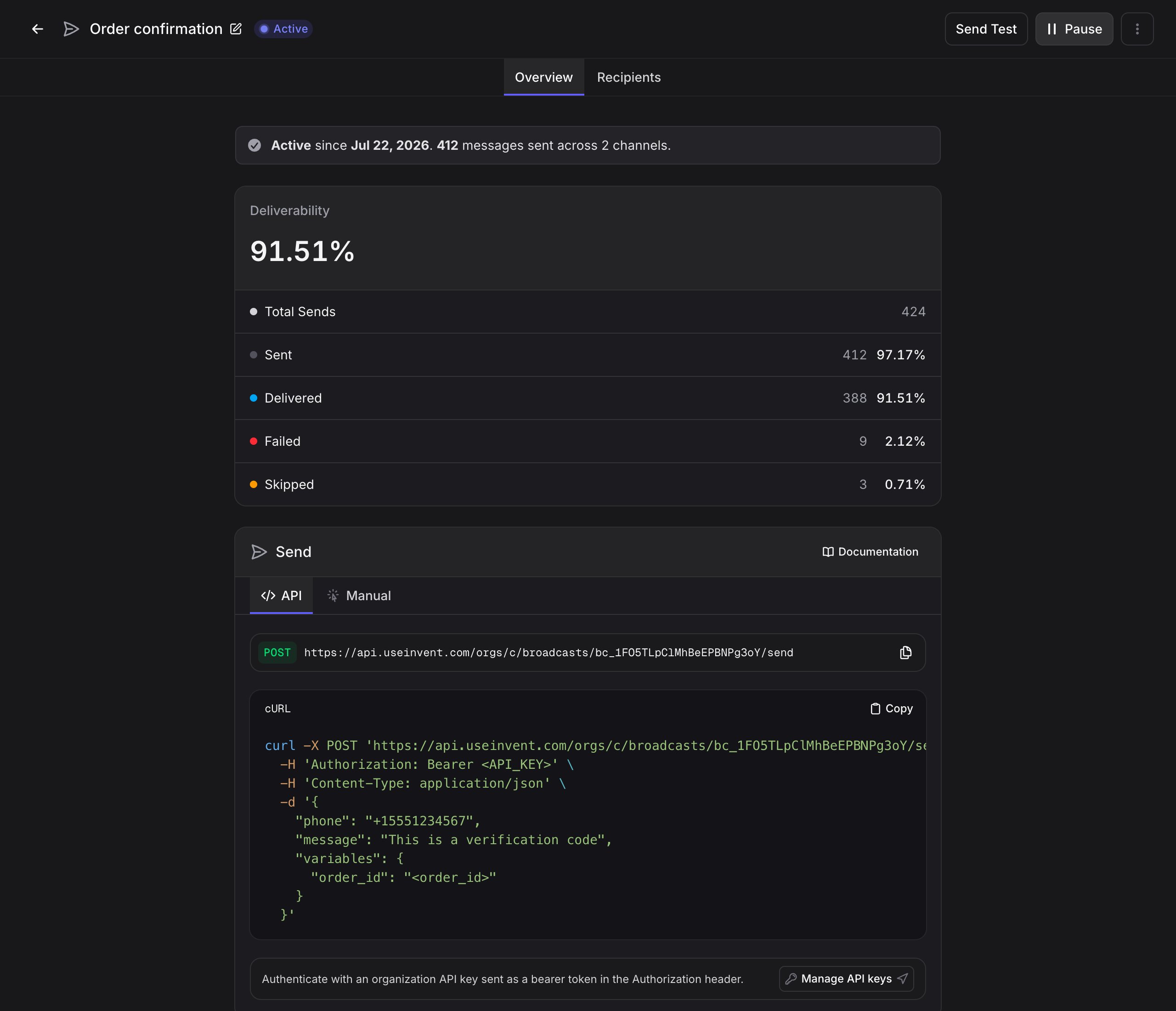
Transactional broadcasts fire one message at a time, triggered by your backend the moment something happens: a sign-up, a purchase, a password reset. Instead of choosing an audience and a send time, you set up the message once, activate it, then call its endpoint whenever you need to send. Each call delivers to a single recipient and fans out across every channel you configured.

Use them for one-to-one, event-driven messages such as one-time passcodes, receipts, order confirmations, and password resets.

<Note>
  This page covers the transactional-specific flow. For the building blocks every broadcast shares (channels, templates, and variables), start with the [Broadcasts overview](/guides/broadcasts/introduction). To send one message to a whole segment at once, see [Marketing broadcasts](/guides/broadcasts/marketing).
</Note>

<Info>
  **No audience, no schedule.** A transactional broadcast sends one message each time you trigger it, so there is no list to send to and no moment to schedule. Each recipient is messaged on every channel they are reachable on: someone with both an email and a WhatsApp number gets both. It is not a fallback chain.
</Info>

<Frame>
  <img src="https://mintcdn.com/invent/Si8CtKN6BSzw7_Wo/assets/guides/broadcasts-transactional-overview.png?fit=max&auto=format&n=Si8CtKN6BSzw7_Wo&q=85&s=32fa78daf731ea78b65539234f71fc32" alt="A transactional broadcast showing its deliverability stats and the Send panel" style={{ maxHeight: '400px' }} width="2560" height="2200" data-path="assets/guides/broadcasts-transactional-overview.png" />
</Frame>

## How it works

<Steps>
  <Step title="Create a transactional broadcast">
    Click **+ Create Broadcast**, name it, and choose **Transactional** as the type. The type cannot be changed after creation.
  </Step>

  <Step title="Add channels and content">
    Add one or more channels and complete a [template](/guides/broadcasts/introduction#channels) for each. This is the same editor that marketing broadcasts use.
  </Step>

  <Step title="Check the variables">
    Each template slot is a [variable](/guides/broadcasts/introduction#variables) already, prefilled with the template's sample. The **Variables** section lists every name a trigger can pass with the default that goes out when it does not. Add your own with **+ Add variable** for values that only arrive with the trigger.
  </Step>

  <Step title="Activate">
    Click **Activate Broadcast** to open the endpoint. The broadcast moves to **Active** and starts sending immediately when called.
  </Step>

  <Step title="Trigger from your backend">
    Call the send endpoint whenever the event happens. Each call delivers to one recipient.
  </Step>
</Steps>

## Setting up the send

The **Send** section has two tabs: **API** and **Manual**.

### API

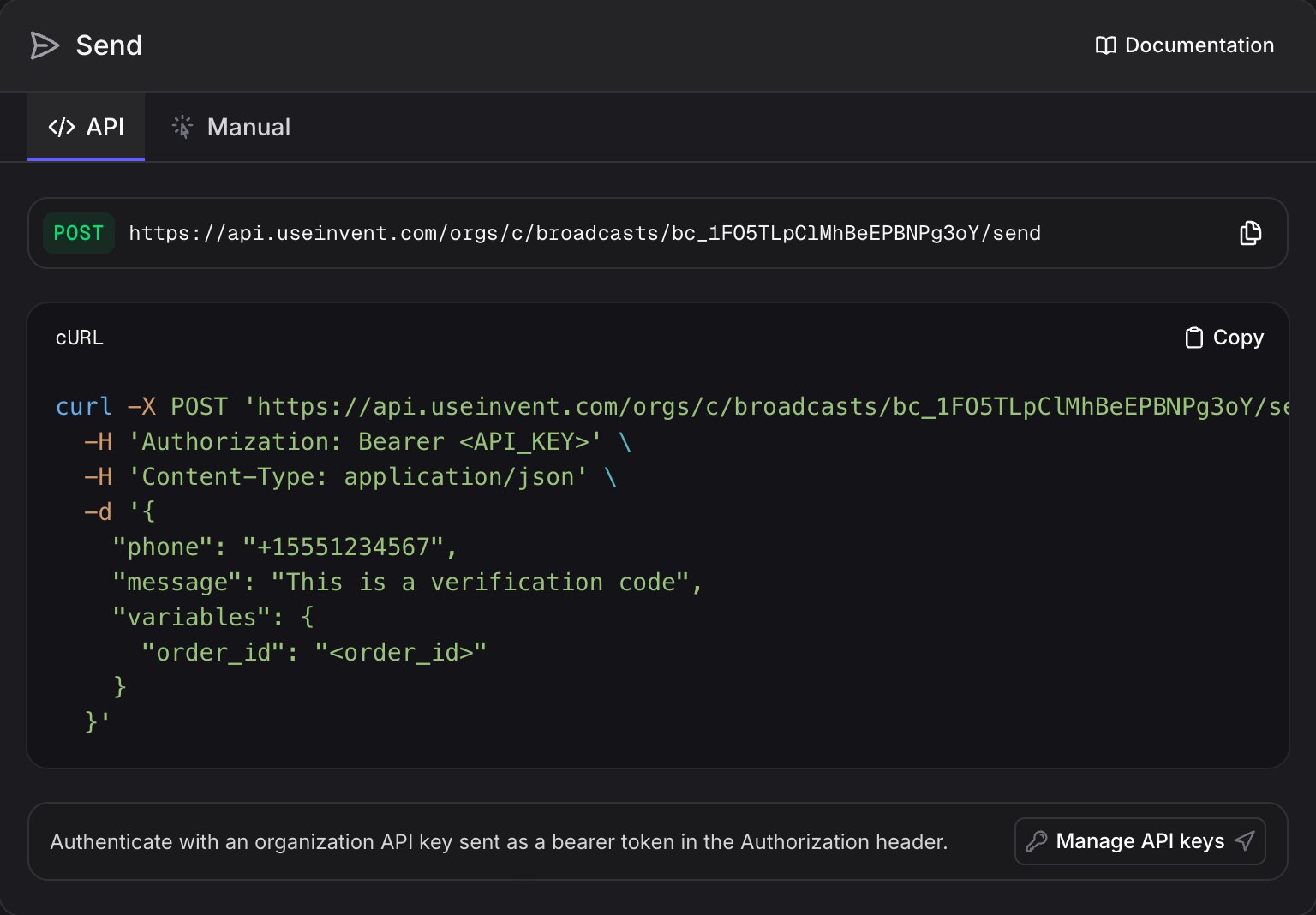
The API tab shows the exact endpoint for this broadcast, a ready-to-copy cURL example, and a link to manage your API keys.

<Frame>
  <img src="https://mintcdn.com/invent/Si8CtKN6BSzw7_Wo/assets/guides/broadcasts-transactional-trigger.png?fit=max&auto=format&n=Si8CtKN6BSzw7_Wo&q=85&s=4c1a0d78835e8ebf1dbf344a2c6b3d74" alt="Send panel API tab showing the POST endpoint, a cURL example, and a Manage API keys button" style={{ maxHeight: '400px' }} width="1536" height="1068" data-path="assets/guides/broadcasts-transactional-trigger.png" />
</Frame>

The endpoint is:

```bash theme={"system"}
POST https://api.useinvent.com/orgs/broadcasts/<BROADCAST_ID>/send
```

<Note>
  The path omits your org ID: the API key already names the organization.
</Note>

A complete request looks like this:

```bash theme={"system"}
curl -X POST 'https://api.useinvent.com/orgs/broadcasts/<BROADCAST_ID>/send' \
  -H 'Authorization: Bearer <API_KEY>' \
  -H 'Content-Type: application/json' \
  -d '{
    "email": "user@example.com",
    "variables": {
      "body_1": "123456"
    }
  }'
```

<Info>
  Authenticate with an organization API key, sent as a bearer token in the `Authorization` header. Create and manage keys in [Settings, API keys](/workspace-management/api-keys).
</Info>

#### Identifying the recipient

Every trigger names exactly one recipient. Provide at least one identifier, in order of precedence:

| Field | Tier | Use it when |
| - | - | - |
| `contact_channel_id` | Most specific | You already know the exact channel to send on. Skips contact resolution and the channel-availability filter. |
| `contact_id` | Known contact | You have the contact's ID. The channel is inferred per template at send time. |
| `phone` or `email` | Raw | You only have a raw identifier. Invent finds or creates the contact. You can pass either or both. |

#### Overriding the recipient details

`phone`, `email`, and `name` double as per-send overrides. When you also pass a `contact_id` or `contact_channel_id`, any of these you include replaces the resolved channel and contact value for that send only. The contact and its stored channels are never modified.

| Field | Overrides |
| - | - |
| `phone` | The phone the message is delivered to |
| `email` | The email the message is delivered to |
| `name` | The display name used in the message |

<Note>
  `name` is an override, not an identifier. It cannot resolve a recipient on its own, so a trigger still needs one of `contact_channel_id`, `contact_id`, `phone`, or `email`.
</Note>

#### Overriding the content

`subject`, `body`, `reply_to`, and `message` are slots like any other: pass them in `variables` to replace the configured content for a single send. Each key applies to every template whose channel exposes it: `subject`, `body`, and `reply_to` to email templates, `message` to SMS templates. Overrides support the same `{{variable}}` placeholders as template content, and the templates themselves are never modified.

```bash theme={"system"}
curl -X POST 'https://api.useinvent.com/orgs/broadcasts/<BROADCAST_ID>/send' \
  -H 'Authorization: Bearer <API_KEY>' \
  -H 'Content-Type: application/json' \
  -d '{
    "email": "user@example.com",
    "variables": {
      "subject": "Your order shipped",
      "body": "<p>Hi {{name}}, it is on the way.</p>",
      "reply_to": "support@acme.com",
      "message": "{{name}}, your order shipped!"
    }
  }'
```

Omit them and the configured template content sends as-is. A key no channel on the broadcast exposes is simply ignored. The same four keys also work at the top level of the body, kept for older integrations.

<Note>
  WhatsApp is currently the only generally available broadcast channel. The email (`subject`, `body`, `reply_to`) and SMS (`message`) overrides are documented for when those channels ship; on a WhatsApp-only broadcast they are ignored.
</Note>

#### Request body

| Field | Required | Description |
| - | - | - |
| `contact_channel_id`, `contact_id`, `phone`, `email` | At least one | Recipient identifiers, sent at the top level of the body. See [Identifying the recipient](#identifying-the-recipient) for precedence. |
| `name` | No | Display-name override for this send. See [Overriding the recipient details](#overriding-the-recipient-details). |
| `variables` | No | Per-recipient values by name: a template slot (`body_1`, `body_customer_name`, `subject`, `message`) or a `{{name}}` written in a template. A slot you omit goes out as configured in the channel editor. |
| `subject`, `body`, `reply_to`, `message` | No | The same content slots as top-level fields, kept for older integrations. See [Overriding the content](#overriding-the-content). |
| `template_ids` | No | A subset of templates to fire. Omit to fire every template on the broadcast. |
| `background` | No | When `false` (default), the call waits for the send and returns an `external_message_id` per template. When `true`, it enqueues and returns immediately. |

The response returns one recipient record per template fired, so you can confirm exactly what was sent.

<Warning>
  The send endpoint is rate limited to **500 requests per 60 seconds**. Queue or batch on your side if you expect bursts above that.
</Warning>

### Manual

The Manual tab fires the same endpoint from the dashboard: enter a recipient, override any slot you want, and click **Send message**. Handy for one-off sends and spot checks without leaving the UI.

Only the identifiers your channels can deliver to are asked for, so a WhatsApp or SMS broadcast asks for a phone and an email-only broadcast asks for an email.

Under **Content**, the tab lists every slot your channels expose, with the configured value as the placeholder. Filling one replaces it for that send only; leave a field blank to keep the template's. Your saved template is never modified.

After sending, the tab switches to a delivery timeline for that message and updates live as the channel reports back, so you can watch it go from sent to delivered without reloading.

## Variables

Transactional templates use the same [variables](/guides/broadcasts/introduction#variables) as marketing broadcasts, with one difference in where the values come from:

* **The channel editor** holds what goes out when a trigger omits a name.
* **Per-trigger values** are passed in the `variables` object and replace those slots for that send.

This lets one broadcast serve many cases. A single `order_confirmation` broadcast can carry a different `body_1` and `body_2` on every call. The **Variables** section and the **Send** section show the exact names for your templates.

## Activating, pausing, and resuming

<Steps>
  <Step title="Activate">
    With at least one complete template, click **Activate Broadcast**. Activating opens the endpoint, and the broadcast starts sending immediately when called. Status: **Active**.
  </Step>

  <Step title="Pause">
    Click **Pause** to close the endpoint. New sends are rejected while paused, and your configuration is preserved. Status: **Paused**.
  </Step>

  <Step title="Resume">
    Click **Resume** to reopen the endpoint. The broadcast returns to **Active** with the same setup.
  </Step>
</Steps>

<Note>
  You can pause and resume as often as you need without losing templates, variables, or settings. A transactional broadcast stays live until you pause it.
</Note>

## Monitoring

An active broadcast shows a live status banner with the date it was activated and how many messages have been sent across how many channels. A paused broadcast shows the paused state and the same totals.

Above it, **Deliverability** and **Engagement** report the rates for this endpoint. Because a transactional broadcast sends repeatedly to the same people, these are measured against total sends rather than distinct recipients, so the figure shown is **Total Sends**.

The Recipients table lists every triggered message with its channel, delivery status, and a **Source** column showing whether the trigger came from the API or a manual send. Because each trigger fans out across templates, one call can produce several rows, one per template.

## Consent and compliance

<Info>
  Unsubscribing is a marketing preference, so an unsubscribed contact still receives transactional sends: a receipt or a one-time code is not a newsletter. A trigger is **rejected** (the API returns a 422 error and nothing is sent) when the recipient is blocked, when any contact in your workspace sharing the same email or phone is blocked, or when the address or number is on the [suppression list](/guides/audience/suppression) as **Bounced**, **Marked as spam**, **Legal request**, or **Added manually**. An **Unsubscribed** suppression entry does not stop a transactional send. You do not need to filter these recipients yourself.
</Info>

Even so, use transactional broadcasts only for genuinely transactional messages the recipient is expecting, such as one-time passcodes, receipts, and confirmations. For promotional content, use a [marketing broadcast](/guides/broadcasts/marketing).

On WhatsApp, match the template category to the content: send these under **Utility** or **Authentication** templates, not **Marketing**. See [Template categories](/guides/broadcasts/channels/whatsapp#template-categories) and [WhatsApp Best Practices](/guides/broadcasts/whatsapp-best-practices).

## Next steps

<CardGroup cols={2}>
  <Card title="Marketing Broadcasts" icon="bullhorn" href="/guides/broadcasts/marketing">
    Send one message to a whole segment at once
  </Card>

  <Card title="API keys" icon="key" href="/workspace-management/api-keys">
    Create and manage the keys that authenticate your triggers
  </Card>

  <Card title="WhatsApp" icon="whatsapp" iconType="brands" href="/guides/broadcasts/channels/whatsapp">
    Configure WhatsApp Templates for transactional sends
  </Card>

  <Card title="Broadcasts Overview" icon="tower-broadcast" href="/guides/broadcasts/introduction">
    Channels, variables, and statuses shared by every broadcast
  </Card>
</CardGroup>


This documentation is built and hosted on [Mintlify](https://mintlify.com), a developer documentation platform.